
Undo, Redo, and action history
Verification record: Umoupen 0.9.59 build 628 (2026-10-05) · Verification scope
Undo reverses editing actions, and Redo reapplies actions that were undone. Action history records those steps in order so you can move backward or forward through them. It is separate from saved snapshots.
Undo the latest action, or inspect the history and move to any recorded point.
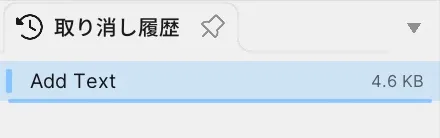
Location: Edit → Undo / Redo, Panels → Show Panels → Undo History
Shortcut (macOS): ⌘Z (Undo) / ⇧⌘Z (Redo)
Shortcut (Windows): Ctrl+Z (Undo) / Ctrl+Shift+Z (Redo)
Basic steps
Section titled “Basic steps”- Use Undo to reverse the latest change, or Redo to reapply an undone change.
- To review action names, open Undo History from Panels.
- Select a history item and confirm the point to which you will move backward or forward.
What Undo History shows
Section titled “What Undo History shows”- Changes to drawings, the Timeline, the Gallery, and scenes
- More detailed step names than regular Undo
- History before and after the current position
- Editing actions under Edit, and changes to Symbols, images, and other assets under Asset
- Memory used by the history, Symbol instance count, and asset count
Click a history row to undo or redo through the point immediately after that action. You can also select rows after the current position.
Cautions
Section titled “Cautions”- If you make a new edit after moving to an earlier point, later Redo history may be lost.
- Saving and Snapshots are separate from Undo. Keep a Snapshot before a large change.
- During collaboration, check Ownership and the range of other users’ changes.
Related articles
Section titled “Related articles”Verification
Section titled “Verification”- Hands-on verified: Checked and captured the displayed panel or menu in the installed app. Undo History shows Add Text after creating a text box. The published image is a faithful crop of the source screenshot.
- Unverified: Verification covers only the interface shown in the image. All article procedures, effects of setting changes, exported file contents, saving/reopening and the Windows version were not reverified in this capture session.