
Split, clear, remove, and delete frames
Verification record: Umoupen 0.9.57 build 596 (2026-09-20) · Verification scope
Split Frame divides a held exposure, while Clear Frame empties the drawing. To remove frames from the Timeline, use Remove Frame or Delete Frames.
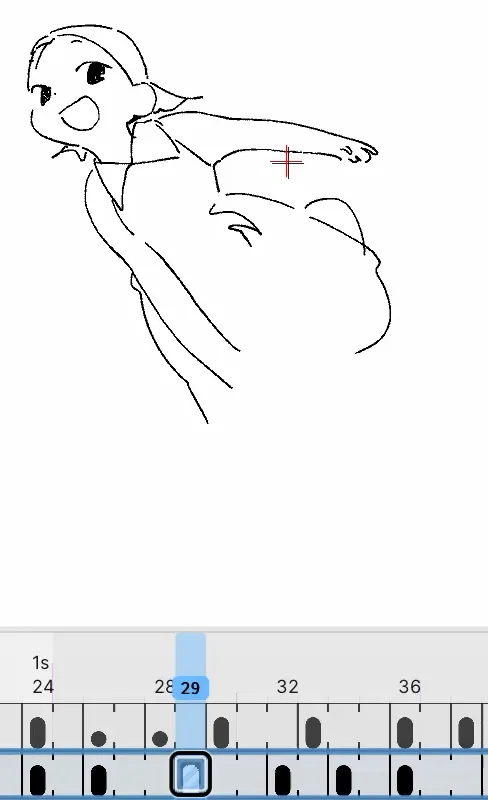
Before deleting, check the target layer and selected range in the Timeline. See Frames, drawings, cels, and exposures for the distinction between artwork and its held interval.
Location: Timeline (Panels → Show Panels → Timeline)
Shortcut (macOS): ⇧K (Split Frame) / ⇧⌫ (Remove Frame)
Shortcut (Windows): Shift+K (Split Frame) / Shift+Backspace (Remove Frame)
Choose the command by purpose
Section titled “Choose the command by purpose”| UI label | What actually changes |
|---|---|
| Split Frame | Splits the held exposure at the playhead. You can edit the two resulting parts separately. |
| Clear Frame | Clears the current drawing but leaves its frame in the Timeline. |
| Remove Frame | Removes the selected frame from the Timeline. |
| Delete Frames | Deletes the selected frames. It also works with a single selected cell. |
Divide a held drawing
Section titled “Divide a held drawing”- Place the playhead inside the exposure you want to divide.
- Confirm that the target layer is selected.
- Run Split Frame.
- Confirm that a boundary was added in the Timeline and that you can select the two parts independently.
Both parts initially show the same artwork. Edit the later part to create a different state.
Clear only the contents
Section titled “Clear only the contents”- Select one frame to clear.
- Run Clear Frame.
- Confirm that the frame remains in the Timeline while its drawing is empty.
Remove the frames themselves
Section titled “Remove the frames themselves”- Select the target layer and the frame range to remove.
- Open Frame in the menu bar and run Remove Frame or Delete Frames.
- Immediately inspect the position of later frames and the playback range.
- If the result is not what you intended, undo before saving.
Remove Frame and Delete Frames can leave later frames arranged differently depending on the selected range. Test with a short range first.
Example: clear, remove, and delete the same frame
Section titled “Example: clear, remove, and delete the same frame”Select the frame-29 cell in A and run each command from the original state. A is the lower Timeline row in these images.
| Command | Frame 29 | Start of the next drawing |
|---|---|---|
| Before | The girl is visible | Frame 32 |
| Clear Frame | Becomes blank | Stays at frame 32 |
| Remove Frame | The start marker disappears and the displayed drawing changes | Moves to frame 31 |
| Delete Frames | The start marker disappears and the displayed drawing changes | Stays at frame 32 |
| Before | Clear Frame |
|---|---|
| 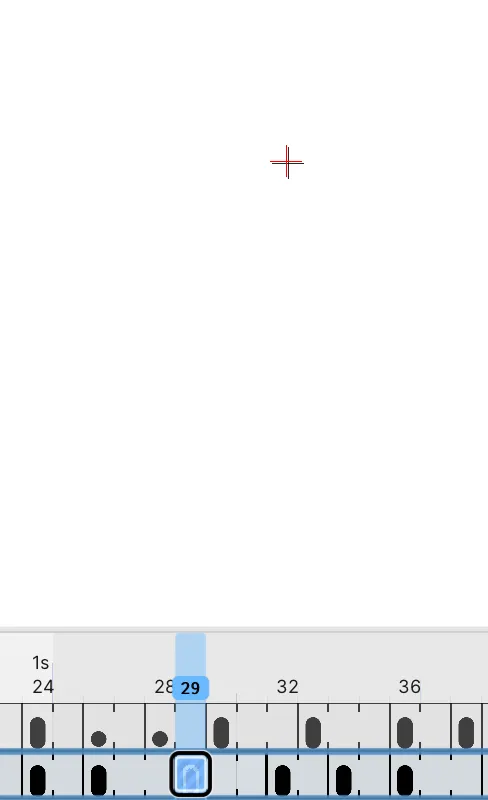 |
| Remove Frame | Delete Frames |
|---|---|
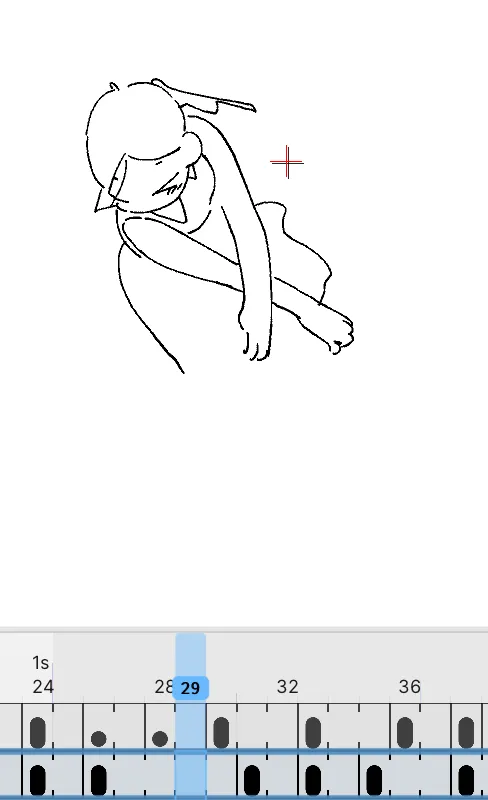 | 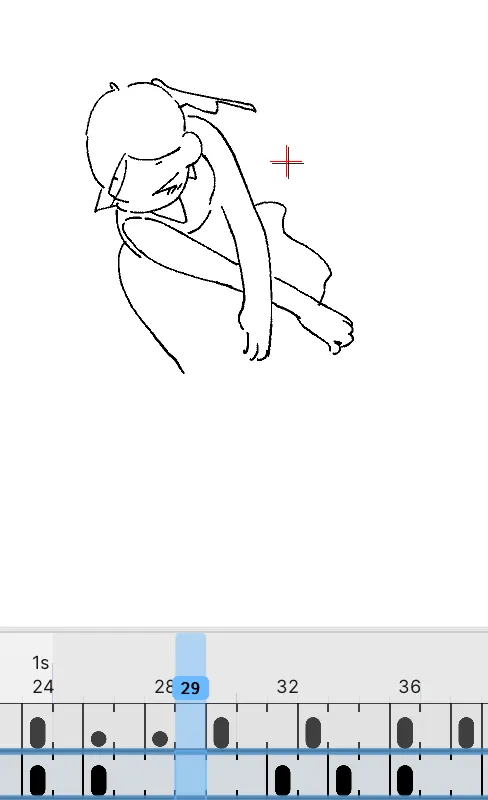 |
This comparison uses a single selected cell. When selecting a range, check the drawing start positions after the operation.
If the result is not what you intended
Section titled “If the result is not what you intended”| Symptom | Check this first |
|---|---|
| A different drawing disappeared | Check the target layer and playhead position before the operation. |
| Several frames disappeared when you intended to remove one | Clear the Timeline range selection and select only one frame. |
| You wanted to keep the frame and remove only its contents | Use Clear Frame, not Remove Frame. |
| Later frames moved | Undo immediately, then compare Remove Frame and Delete Frames on a short range. |
Related articles
Section titled “Related articles”Verification
Section titled “Verification”- Verified from the current implementation: Verified in the current implementation that
Prune Frameis only passed to the undo record: it is not in the built-in translations, and neither the menu-building code nor the list of shortcut display names has an item with that name. - Unverified: Not verified: the other items and results in this article on build 596, how they look in the live interface, and the Windows version.
- Evidence records: F-20260920-003