
Show and arrange panels
Verification record: Umoupen 0.9.59 build 628 (2026-10-05) · Verification scope
A panel groups information and controls for a purpose, such as layers or colors. Docking places a panel in an edge or column of the layout; a floating panel sits independently of that docked arrangement.
Open the panels you need and build your workspace with docks, floating panels, and columns.
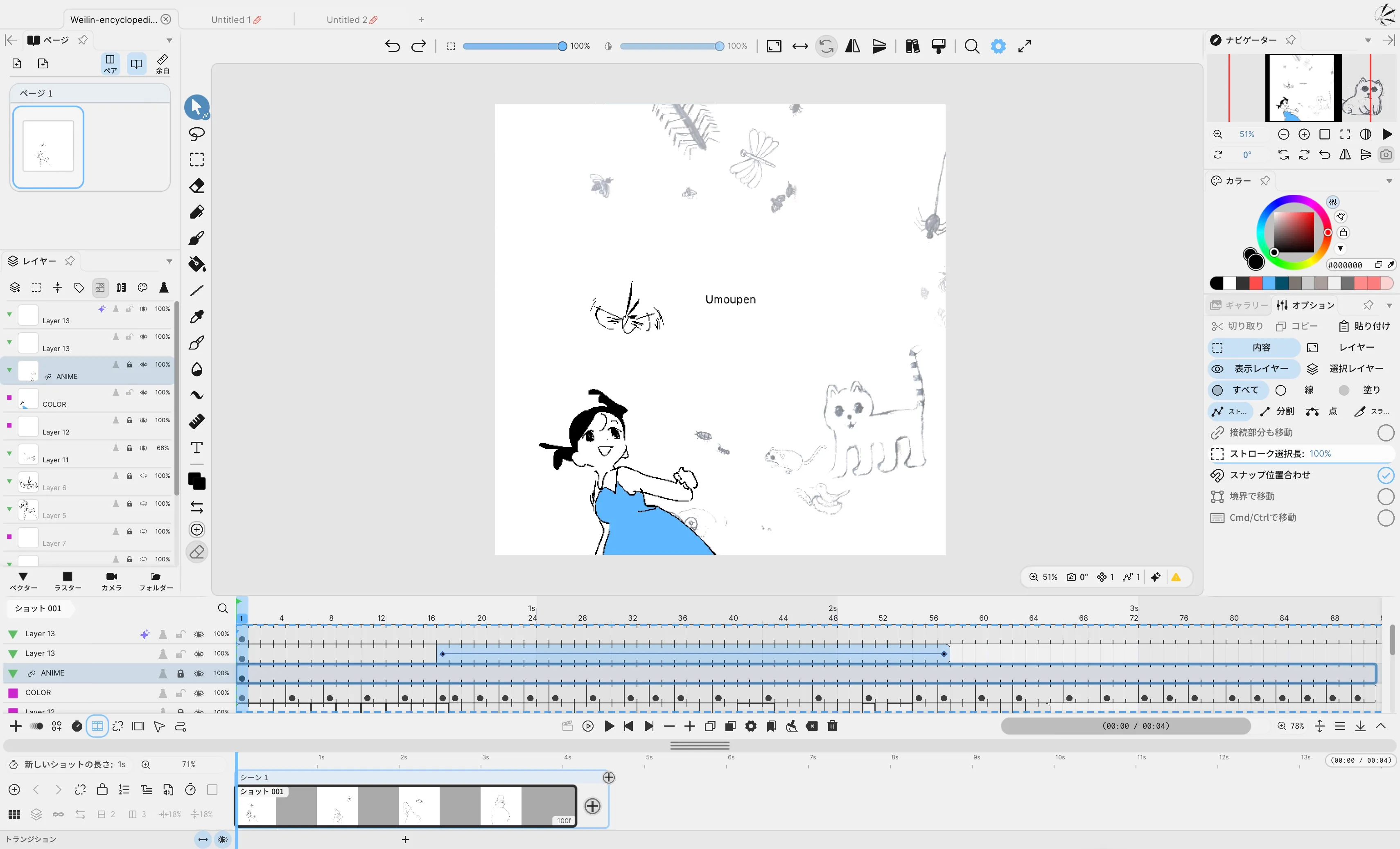
Pages and Layers are on the left; Navigator, Color and Options are on the right; Timeline and Storyboard Timeline are below.
Location: Panels → Show Panels
Basic steps
Section titled “Basic steps”- Open a panel from Panels → Show Panels.
- Drag its title bar to an edge or column to dock it.
- Drag a docked panel away from the dock to float it.
- Turn on Lock Panels when you want to keep the layout fixed.
Layout types
Section titled “Layout types”| Action | Result |
|---|---|
| Click a panel button in the Toolbar | Opens it temporarily as a popout |
| Drag the title bar to an edge | Creates a dock or a new column |
| Drag a panel out of a dock | Creates a floating panel |
| Drag an edge of a floating panel | Resizes it |
| Lock Panels | Prevents accidental layout changes |
| Always Show Toolbar | Keeps the Toolbar visible when panels are hidden |
| Flush Toolbars | Aligns Toolbars with the edge of the screen |
| Edit Toolbar | Edits Toolbar buttons and their order |
| Timesheet Timeline | Replaces the regular Timeline with the Timesheet view |
| Separate Timeline Window | Moves the Timeline or Timesheet into an independent window |
Open an explanation by panel name
Section titled “Open an explanation by panel name”The following table links to instructions for each panel.
| On-screen name | Main contents | Details |
|---|---|---|
| Timeline | Frames, cells, playback position | Reading the Timeline |
| Frame Picker | Show and choose cel candidates | Select the target cel in the panel |
| Pages | Page thumbnails, single pages, spreads | Pages panel and page switching |
| Brushes | Brush presets and groups | Brush presets and groups |
| Brush Size | Current brush size | Draw with the Brush |
| Color | Color wheel, HSV / RGB, recent colors | Stroke and fill colors |
| Effects | Add and configure effects | Layer effects |
| Gallery | Find, place, and save assets | Use the Gallery |
| Help | User guide, Tips, and Shortcuts | Help and Tips |
| Layers | Active layer, top icons, and layer rows | The Layers panel and active layer |
| Market | Get assets, manage your posts, and upload | Market |
| Navigator | Visible area, zoom, and view switching | Navigator |
| Onion Skin | Surrounding drawings, visible layers, and marked frames | Onion Skin |
| Palettes | Create palettes and add, import, or export colors | Manage Palettes |
| Options / Properties | Settings for the selected tool or layer | Properties for each tool |
| Reference Images | Add, show, and crop reference images | Images and reference images |
| Scripts | Create, edit, and run scripts | Use scripts |
| Session | Host or join collaborative work and use Chat | Sessions and collaboration |
| Storyboard | Shot thumbnails and CAM view | Storyboard panel and shot thumbnails |
| Timesheet | Timesheet display and editing | Read and use the Timesheet Timeline |
| Undo History | Action history and current history position | Undo, Redo, and action history |
If you cannot find a panel
Section titled “If you cannot find a panel”- Under Panel in Settings, check that the panel is available.
- Some panels are hidden in particular project modes.
- If a floating panel is outside the screen, reopen it or check the layout settings.
Save layouts for different tasks
Section titled “Save layouts for different tasks”See Workspace presets for saving a named panel layout and reloading it after using another layout.
Use one layout across files
Section titled “Use one layout across files”Use Single Workspace for All Files shares one panel layout across all files and saves changes automatically. Use this setting for a shared layout, or workspace presets for task-specific layouts. Switch to another file to check the arrangement.
Related articles
Section titled “Related articles”Verification
Section titled “Verification”- Hands-on verified: Recaptured the full workspace at frame 1, matching the previously selected article image. Captured project tabs, side panels and the lower Timeline, and aligned the screen map markers with the current layout.
- Unverified: Verification is limited to the captured interface and the actions described above. All article procedures, setting effects, output files, saving/reopening and Windows behavior were not reverified.