
Page animation and playback
Verification record: Umoupen 0.9.59 build 628 (2026-10-05) · Verification scope
Page animation changes drawings over time within a page. Edit frames inside the page separately from switching between pages.
Enable animation for each page and edit its drawings and playback range in a dedicated Frame Timeline.
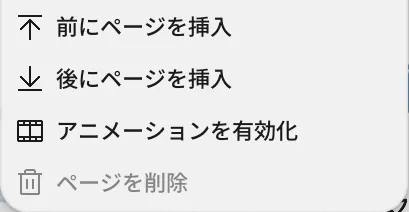
Location: Pages panel → Page Animation / Preview
Animate one Page
Section titled “Animate one Page”- Select the target page in the Pages panel.
- Choose Enable Animation.
- Confirm that the Timeline now belongs to the current page.
- Create frames on a layer, then set the playback range with Start and End.
- Use
Play From Startor another playback command to play the current page range.
Preview several Pages continuously
Section titled “Preview several Pages continuously”- Enable animation on each moving page and check the playback range for each one.
- Select the first page to play.
- Run
Play Through Pages. - Confirm the page order and playback range for each page.
If it does not play
Section titled “If it does not play”| Symptom | Check this first |
|---|---|
| The Timeline still behaves as a still page | Select the target page and choose Enable Animation. |
| Nothing moves | Confirm that a layer on the current page contains more than one frame. |
| Playback stops early | Check Start, End, and the Timeline playback range for the current page. |
| A different page plays | Select the starting page again in the Pages panel. |
| Pages do not play continuously | Check that animation and a playback range are set for each target page, then use Play Through Pages. |
How existing frames are kept after Disable Animation has only limited verification. Save the project before disabling it.
Main options
Section titled “Main options”| Option | What it does |
|---|---|
| Enable / Disable Animation | Enables or disables the Page Timeline |
| Page Edit Mode | Edits the current page |
| Playback Range | Sets the Start and End within the page |
| Play Through Pages | Plays several pages continuously |
Related articles
Section titled “Related articles”Verification
Section titled “Verification”- Hands-on verified: Checked and captured the displayed panel or menu in the installed app. The lower page context menu includes Enable Animation. The published image is a faithful crop of the source screenshot.
- Unverified: Verification covers only the interface shown in the image. All article procedures, effects of setting changes, exported file contents, saving/reopening and the Windows version were not reverified in this capture session.