
Draw with the Brush
Verification record: Umoupen 0.9.59 build 628 (2026-10-05) · Verification scope
Use the Brush for soft lines, textured strokes, and painterly drawing. On raster layers, Brush and Pen both paint pixels through brush presets. On vector layers, Brush switches to vector-tip controls.
A stroke is the continuous mark drawn between pressing and releasing the pen or mouse. A brush preset stores the settings that determine its appearance; manage these in Brush presets and groups. See Raster and vector layers for the drawing formats.
Location: Left toolbar → Brush / Options on the right / Panels → Show Panels → Brushes
Shortcut: B (Brush) / [ / ] (Brush Size)
Basic use
Section titled “Basic use”- Select Brush.
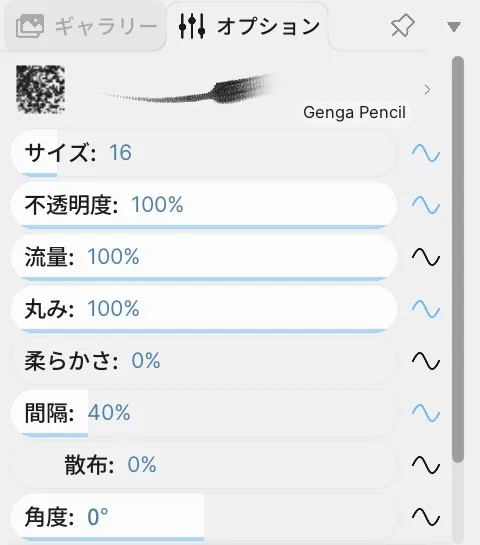
- Set the preset, size, and opacity in Options on the right or in the Brushes panel.
- Drag on the Stage to draw.
Infinite canvas: The current Stage viewport is not the edge of the drawing area. Pan to another area to keep drawing beyond the current view.
Options panel controls
Section titled “Options panel controls”| Option | What it changes |
|---|---|
| Size | Stroke width. |
| Opacity / Flow | Maximum opacity / amount of paint applied at once. |
| Roundness / Softness / Angle | Tip compression, edge softness, and direction. |
| Spacing / Scatter | Spacing and spread of brush marks. |
| Stabilizer / Smoothing | Correction for hand shake and small variations in the input line. |
| Textures | Texture, strength, contrast, size, compositing method, and Crisp / Smooth rendering. |
| Dynamics | Changes driven by Pressure, Tilt, Speed, Stroke Direction, and other input. |
| Color Jitter / Pick Up Color | Color variation and how the brush picks up colors while drawing. |
| Paint Behind / Eraser Mode | Draws behind existing artwork / erases with the same brush tip. |
| Dual Brush | Overlays a second brush tip. |
| Reset Brush / Update Default / Save as New | Restores the current settings, updates the default, or saves a separate brush. |
On a vector layer, the controls change to vector-brush settings such as Vector Tip, line ends, and Follow Direction. Open Advanced to show textures, color variation, color mixing, Dual Brush, and other settings.
Pick Up Color
Section titled “Pick Up Color”Advanced → Pick Up Color samples and mixes colors from the canvas as you draw.
| Option | What it does |
|---|---|
| Selected / All Visible | Samples from the selected layer or from the visible composite. |
| Point | Uses one sampled color across the entire brush tip. |
| Brush Tip | Treats tip opacity as bristle depth and samples a color at each position. |
| Carry | Controls how much sampled pigment is retained while the brush moves. |
| Deposit | Controls how strongly sampled pigment is deposited on the canvas. |
Brush Size panel
Section titled “Brush Size panel”Open Panels → Show Panels → Brush Size to choose the line width directly from numeric size samples. Whole-number sizes appear as integers, while sizes with a fractional part use decimal notation. The current size stays synchronized with Size in Options.
Pick up paint from the same stroke
Section titled “Pick up paint from the same stroke”Enable Pick Up Fresh Paint under Advanced → Pick Up Color to let later parts of a stroke pick up paint deposited earlier in that same stroke.
Minimum Bristle Depth raises the contact floor for shallower bristles. Adjust it to retain differences between bristles or make pickup more uniform. Compare short strokes with the same brush while keeping Carry and Deposit unchanged.
Use screen-relative sizing
Section titled “Use screen-relative sizing”Screen Size switches brush sizing to a screen-relative basis. Make test strokes at different zoom levels and compare their width on screen and in the artwork before use.
Related articles
Section titled “Related articles”Verification
Section titled “Verification”- Hands-on verified: Checked and captured the displayed panel or menu in the installed app. The upper Brush Options show the preset preview, size, opacity, flow and related controls. The published image is a faithful crop of the source screenshot.
- Unverified: Verification covers only the interface shown in the image. All article procedures, effects of setting changes, exported file contents, saving/reopening and the Windows version were not reverified in this capture session.