
Erase artwork
Verification record: Umoupen 0.9.59 build 628 (2026-10-05) · Verification scope
Erase image pixels on raster layers, or lines and filled shapes on vector layers. The artwork format determines what is erased and which controls are available.
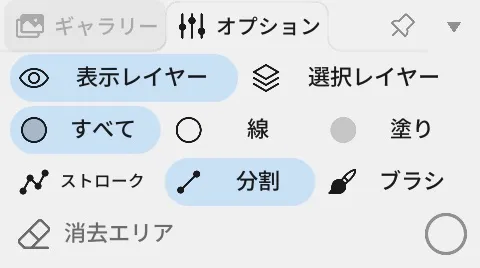
Location: Left toolbar → Eraser / Options on the right
Shortcut: E (Eraser) / C (Toggle Eraser Mode)
Basic use
Section titled “Basic use”- Select Eraser.
- In Options, choose the size, brush tip, erase mode, and target.
- Drag over the area you want to erase.
Options panel controls
Section titled “Options panel controls”| Option | What it changes |
|---|---|
| Size / Roundness / Softness / Spacing / Angle | The width, shape, hardness, spacing, and direction of the raster eraser. |
| Visible Layers / Selected Layers | The layer range referenced when erasing vectors. |
| All / Lines / Fills | What gets erased. |
| Shape / Split / Brush | Switches between erasing whole shapes, splitting lines, and erasing within the brush area. |
| Erase Area | The area used to decide which vectors to erase. |
| Auto Split Strokes | Automatically splits a stroke at the erased section. |
| Eraser Mode | Makes the current Brush or Pen erase with the same tip. |
- Use Eraser Mode when you want to erase with the current Brush or Pen shape without changing tools.
Related articles
Section titled “Related articles”Verification
Section titled “Verification”- Hands-on verified: Checked and captured the displayed panel or menu in the installed app. This vector Eraser example shows layer scope, line/fill targets and Stroke, Segment and Brush modes. The published image is a faithful crop of the source screenshot.
- Unverified: Verification covers only the interface shown in the image. All article procedures, effects of setting changes, exported file contents, saving/reopening and the Windows version were not reverified in this capture session.