
Layer effects
Verification record: Umoupen 0.9.63 build 677 (2026-11-05) · Verification scope
An effect processes the displayed result of a layer or folder while preserving the source artwork. An effect stack is the list of effects arranged in the order in which they are applied. If no change is visible, check the enabled state, target, and parameter value in that order.
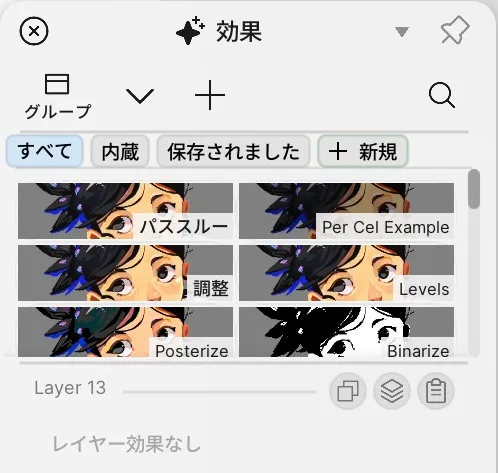
Location: Layers panel → Effect for the target layer
Shortcut (macOS): ⇧E (Toggle Layer Effects)
Shortcut (Windows): Shift+E (Toggle Layer Effects)
Add and check the first effect
Section titled “Add and check the first effect”- Open
Panels → Show Panels → Effects, then select the target layer. - Choose one item from Add Effects.
- Adjust the parameter values.
- Toggle the effect off and on, and confirm that the target layer changes.
- If you use several effects, adjust their order in the stack.
If the result becomes difficult to identify, leave only one effect enabled while you isolate the cause.
If no change is visible
Section titled “If no change is visible”| Where to check | What to check |
|---|---|
| Target layer | The intended layer or folder is selected and visible. |
| Effect Stack | The effect and the overall stack are enabled. |
| Target | This Layer or Layers Below matches where you want to apply the effect. |
| Parameter | You moved a value away from its default far enough to identify the change. |
| Mask | Use current layer as mask is not limiting the effect to an unexpected area. |
| Preview | Same as Export or Window is the preview basis you intend to inspect. |
| Custom effect | You pressed Apply after editing the source and no error remains. |
Reorder effects or make the result permanent
Section titled “Reorder effects or make the result permanent”- Drag effects within the stack to change their order. Compare one effect at a time before and after reordering.
- The stack applies from the top down. Put an effect that checks the finished colors, such as Color Vision Preview, at the bottom; placed higher, it shows the colors before the effects beneath it are applied.
- An effect assigned to a folder is applied to the composite result of its child layers.
- Bake Effects makes the current visible result permanent in the layer. Create a file snapshot or duplicate the target layer before using it.
- Inspect the appearance after baking. If it is not what you intended, undo before saving.
Main options
Section titled “Main options”| Option | What it does |
|---|---|
| Preview: Same as Export / Window | Previews the effect using export-based or screen-based rendering. |
| Saved Effects / New | Uses a saved effect or creates a new one. |
| Effect Stack | Reorders multiple effects on a layer and enables or disables them. |
| This Layer / Layers Below | Chooses where the effect is applied. |
| Use current layer as mask | Uses the current layer shape as the effect area. |
| Add Keyframe | Adds a parameter key at the playhead. |
| Pick Color From Stage / Edit Color | Changes a color parameter with the Eyedropper or numeric values. |
| Code / Apply / Revert / Save | Edits, applies, restores, or saves custom-effect source. |
| Apply to a folder | Applies an effect to the composite result of the folder contents. |
| Bake Effects | Bakes the current visible effect result into the layer. |
Drag a saved effect outside the panel to export it as an .umofx file. Drop an .umofx file into the panel to import it.
See Custom effects when you need to edit an effect’s source.
Organize saved effects
Section titled “Organize saved effects”Saved effects are available as cards in the panel. Create packs in the sidebar to organize them.
Drag a saved card out of the app to export .umofx, or drag a pack out to export .umofxp. Drop either file type into Umoupen to import it. The older .umoeffect and .umoeffectpack formats import the same way.
The right-click menu offers these items.
| Item | What it does |
|---|---|
| Save Current Effect Preset / Delete Effect Preset | Saves the current values under a preset name, or removes one. With nothing saved the menu shows No presets saved. |
| Add to / Remove from a pack | Puts a saved effect into a pack, or takes it out. The item carries the pack’s name. |
| Export Effect Pack / Delete Pack | Exports a pack as .umofxp, or deletes it. |
| Export / Delete | Exports or deletes a single saved effect. |
Drive shaders with cel timing
Section titled “Drive shaders with cel timing”In an effect’s code, cel is the drawing number starting at 1 and remains constant through a hold. celFrame starts at 0 and increases within the current exposure. Use these to distinguish changes on each drawing from changes that continue during a hold.
Color quantization and adjustments
Section titled “Color quantization and adjustments”Color Quantize is introduced in the build 608 announcement as a built-in effect for binarizing cel artwork before coloring. Add it to the target layer and toggle it to compare lines and colors.
Adjustment effects also provide curve and gradient editing controls. Compare shadows, highlights, and color boundaries after editing.
Related articles
Section titled “Related articles”Verification
Section titled “Verification”- Verified from the current implementation: Confirmed in the current implementation that saved effects export as .umofx and packs as .umofxp. Dragging a pack out and the Export Effect Pack context command use the same export routine. Import accepts .umofx and .umofxp as well as the older .umoeffect and .umoeffectpack formats, and the built-in Help describes .umofx and .umofxp.
- Unverified: Only the corrected part was checked. The full article, actual exported files, import results on screen and Windows behavior were not verified.
- Evidence records: F-20261103-013