
Splash Screen and project management
Verification record: Umoupen 0.9.59 build 628 (2026-10-06) · Verification scope
The Splash Screen is the starting screen for creating projects and opening existing ones. It lists recent files and lets you organize several projects into groups.
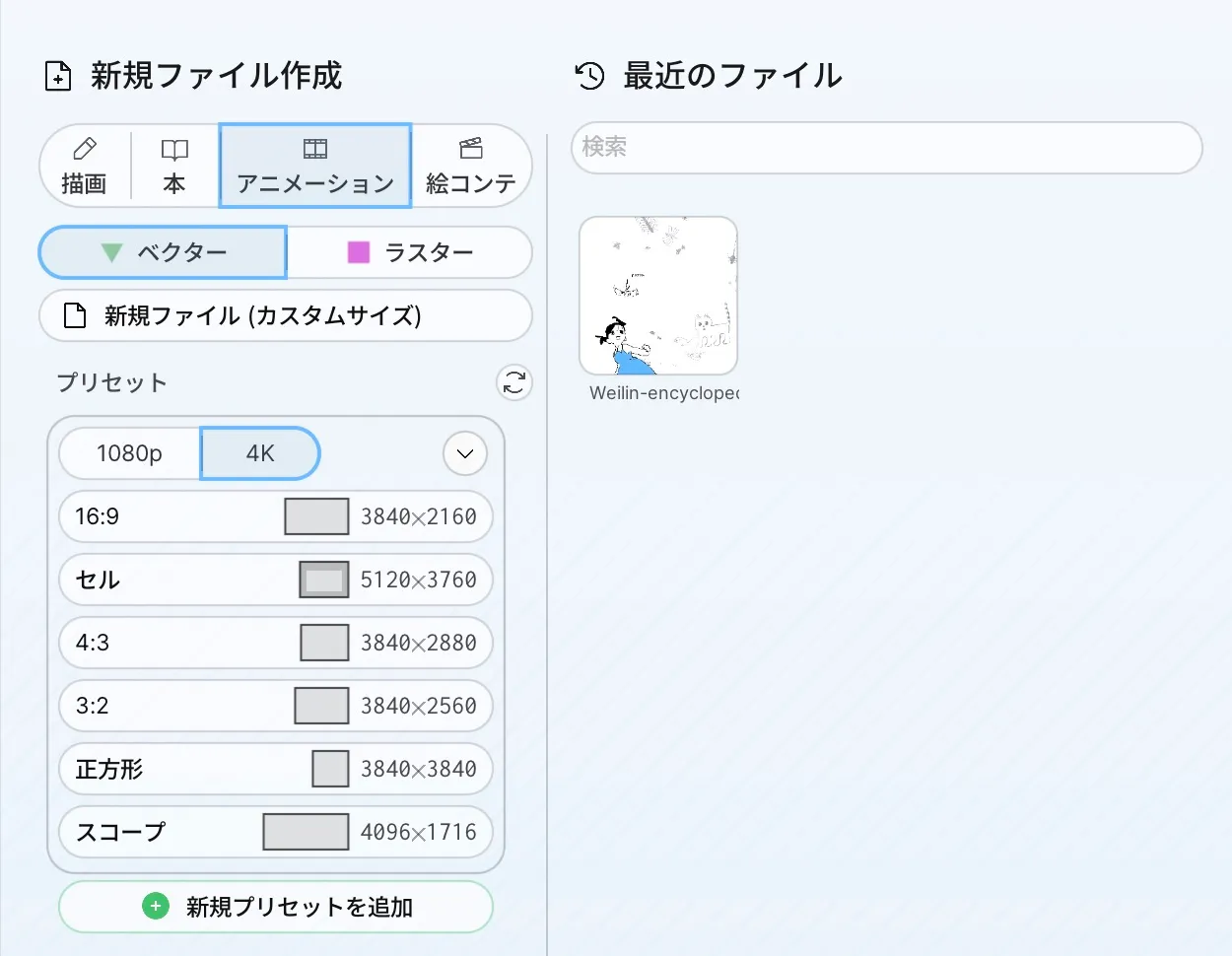

Location: On startup / Settings → More → Open Splash Screen
Open the Splash Screen
Section titled “Open the Splash Screen”It appears when you start Umoupen with no project open. To return to it while working, choose More → Open Splash Screen in Settings.
Open global settings
Section titled “Open global settings”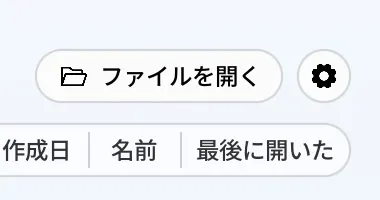
Select the gear at the upper right of the Splash Screen, beside Open File, to open global settings. This is a separate entry from the gear in the workspace, with three tabs: File, View, and More.
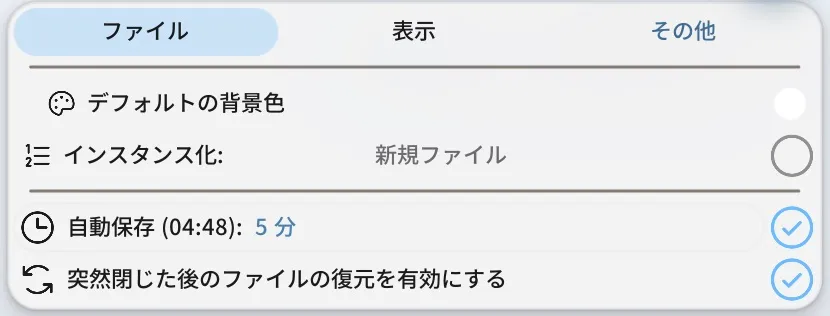
| Tab | Main options |
|---|---|
| File | Default background color, instancing for new files, auto-save and its interval, and file recovery after an unexpected closure |
| View | Theme, gray theme, UI translucency, corner shape and accent, UI and font scale, tooltips, HUD boxes, editing aids, zoom sensitivity, cursor, and Stage rotation and zoom |
| More | Temporary tool switching, raw pen input, stabilizer, pen eraser and pressure, language, GPU mode, full resolution and system cursor, My Library and sync, devices, bug reports, logs and save-failure reports, keybinds, preference reset, credits, automatic updates and version, username, license and My Devices |
See workspace settings for the gear that handles the current file, exports, and panel arrangement. Global settings have no Export or Layout tab.
Create or open work
Section titled “Create or open work”| Option | What it does | What you see when it succeeds |
|---|---|---|
| Create New File | Creates new work as a Drawing, Comic, or Animation | The settings for a new file open |
| Recent Files | Opens a recently used project from its tile | The project opens in a new tab |
| Reopen Files | Reopens the projects from your previous session | Tabs for the restored projects appear |
See Project types and creating a new file for presets and project uses. See Open and close files to choose and open a file.
Manage Recent Files
Section titled “Manage Recent Files”Choose one of these actions from a project tile’s menu.
| Option | What it does |
|---|---|
| Open in New Tab | Opens the selected project in another tab |
| Switch to Open Tab | Moves to the tab of a project that is already open |
| Remove from Recent Files | Removes the selected item from Recent Files |
If the list is empty, drag a folder into the window to set the default folder, or drag a .umou file into the window to add it. Use Reset Default Folder to choose a different default folder.
Organize projects into groups
Section titled “Organize projects into groups”- On the Splash Screen, drag one project tile onto another project.
- Drag other projects into the new group to add them.
- Choose Open Group to view its contents.
Multiple projects appear in a single group tile. Choose Ungroup when you want to show the projects separately again.
Thumbnail and file location
Section titled “Thumbnail and file location”- Display the view you want to use as the thumbnail.
- Choose Use Fixed Thumbnail to keep the current view as the thumbnail.
- Choose Show in Finder to open the saved file’s location.
Main options
Section titled “Main options”| Option | What it does |
|---|---|
| Open Splash Screen | Returns to the Splash Screen from the workspace |
| Open Group | Shows the projects collected in a group |
| Ungroup | Dissolves a group and shows its projects separately |
| Use Fixed Thumbnail | Stops automatic thumbnail updates and uses the current image |
| Show in Finder | Shows the saved .umou file in Finder |
I cannot find how to return to the Splash Screen
Section titled “I cannot find how to return to the Splash Screen”Open Settings, then choose More → Open Splash Screen.
The project I want is not in Recent Files
Section titled “The project I want is not in Recent Files”Drag the .umou file onto the Splash Screen, or press Cmd+O to open it.
Related articles
Section titled “Related articles”Verification
Section titled “Verification”- Hands-on verified: Opened the gear at the upper right of the Splash Screen and checked the File, View, and More tabs and their visible options in global settings. Switched tabs, captured the screen, and closed it without changing values. Published images are faithful crops of the actual screen.
- Unverified: Verification covers only the interface shown in the image. All article procedures, effects of setting changes, exported file contents, saving/reopening and the Windows version were not reverified in this capture session.