
Fill an area with color
Verification record: Umoupen 0.9.59 build 628 (2026-10-05) · Verification scope
Fill places color inside a bounded region. You can choose the destination layer separately from the reference layers whose artwork defines the boundaries.
| Method | Operation |
|---|---|
| Fill | Choose a color and click a region enclosed by lines. |
| Smart Fill | Draw short color seeds on a dedicated layer to generate fills from referenced line art. |
Location: Left toolbar → Fill / Options on the right
Shortcut: F
Fill an enclosed area
Section titled “Fill an enclosed area”- Make the layer that will receive the color active, then press
Fto select Fill. - Choose Selected Layers to find boundaries only in the selected layers, Visible Layers to include other visible layers, or Linked to use only layers connected in the Layers panel.
- Choose All, Lines, or Fills as the boundary target.
- Choose a color and click the enclosed area.
- Confirm that color was added only to the intended layer and did not leak outside the boundary.
To fill by drawing a shape instead of clicking, enable Draw Fill Shape and draw a closed shape with the Fill tool. Color is added inside the shape you draw.
If the line has a small gap
Section titled “If the line has a small gap”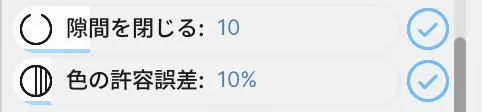
- Enable Live Preview.
- Enable Fill Gap.
- Increase Gap Size gradually from a small value.
- Stop when only the intended side of the boundary is targeted.
If Gap Size is too high, a different opening can also be treated as closed. If the fill leaks widely, lower the value and close the line itself.
Example: fill the girl’s hair
Section titled “Example: fill the girl’s hair”Choose dark gray, then click the three hair regions in turn. Fill Gap is enabled for this drawing. Finally, switch to the Move tool to clear the fill preview.
Use only linked layers as boundaries
Section titled “Use only linked layers as boundaries”Connect the destination and line art directly in the Layers panel to use only specific layers as fill boundaries.
- Drag from the destination layer’s fill badge to the Raster or Vector line-art layer that should provide a boundary.
- Choose Linked for the Fill reference scope.
- Click the area to fill and confirm that only the connected layers were used as boundaries. Directly linked line art is included even when it is locked or hidden.
- Click the eyeglass badge on a referenced layer to disconnect it.
If no connection is available, Umoupen reports No line art linked to this layer. Reconnect the fill badge to the line-art layer.
Follow line art with Smart Fill
Section titled “Follow line art with Smart Fill”The dedicated layer, line art connection, and fill generation from color seeds are covered in Smart Fill Layer.
Include or exclude colors in raster line art
Section titled “Include or exclude colors in raster line art”When coloring binarized Raster line art, you can decide whether red or blue shadow and highlight guide lines count as boundaries.
- Prepare the Raster line art and destination, then select Fill.
- Choose Include, Exclude, or Only Specific Color for the color rule.
- Set the included or excluded colors and test a small region first.
- Turn on Contiguous to affect only adjacent areas of the matching color. Turn it off to include separate matching areas in the frame.
These color rules can be combined with Only Fill Empty Spaces.
If an area will not fill or the color leaks
Section titled “If an area will not fill or the color leaks”| Symptom | Check this first |
|---|---|
| Clicking does not apply color | Confirm that the destination layer is active and that Only Fill Empty Spaces or Recolor Only matches your purpose. |
| A line on another layer is not used as a boundary | Switch the reference range to Visible Layers and confirm that the boundary layer is visible. |
| An enclosed area is not detected | Switch the target to Lines or All, then adjust Tolerance gradually. |
| Color leaks outside | Lower Gap Size, close the break in the line, and confirm that Fill Inverted is off. |
| Several areas are filled at once | Turn off Fill All. |
| The fill stops short of the inside edge | Increase Expand Fill gradually and inspect the boundary at higher zoom. |
Options shown for Fill
Section titled “Options shown for Fill”| Option | What it changes |
|---|---|
| Opacity | Fill opacity. |
| Visible Layers / Selected Layers / Linked | Finds boundaries in visible, selected, or directly linked layers. |
| Fill references | Direct connections between the destination and line-art layers used as boundaries. |
| All / Lines / Fills | Which artwork is considered when determining the fill. |
| Fill Gap / Outer Weighting / Gap Size | How strongly line gaps are closed, how the outer edge is prioritized, and the display range for remaining gaps. |
| Tolerance / Only Fill Empty Spaces / Fill All | Allowed color difference, restriction to transparent areas, and filling all matching areas at once. |
| Gradient Fill | Fills with a Linear or Radial gradient. |
| Draw Fill Shape | Fills by drawing a closed shape instead of clicking. |
| Recolor Only / Delete Fill Shape | Changes only the color of touched lines or fills / removes the inside of the shape. |
| Fill Behind / Expand Fill / Fill Blur | Fills behind existing artwork, expands the fill, or softens its edge. |
| Fill Texture | Adds a texture to the fill and adjusts its strength and size. |
| Fill Limit / Live Preview / Fill Inverted | Limits the processed area, previews the result, or swaps the inside and outside. |
| Auto Select Tolerance / Contiguous / Anti-Alias | Color difference, adjacency, and edge handling when Auto Select is also used. |
| Include Color / Include / Exclude / Only Specific Color | Colors included in raster boundaries, excluded from them, or used as the only target. |
Related articles
Section titled “Related articles”Verification
Section titled “Verification”- Hands-on verified: Checked the displayed interface in installed build 628 and published a faithful crop. The Fill options show Close Gaps set to 10 and Color Tolerance set to 10%.
- Unverified: Verification is limited to the captured interface and the actions described above. All article procedures, setting effects, output files, saving/reopening and Windows behavior were not reverified.