
Read and customize toolbars
Verification record: Umoupen 0.9.59 build 628 (2026-10-05) · Verification scope
A toolbar is a row or column of buttons for selecting tools or running commands. Properties / Options are settings that change with the selected tool or object.
The vertical column on the left is the main Toolbar for drawing and selection.
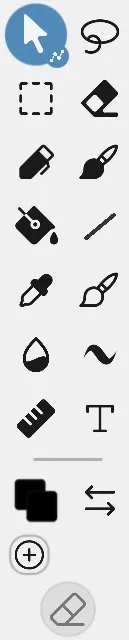
Selection, drawing, fill, and text controls appear above the color swatches and Swap Colors button. You can customize their order.
Location: 2D Tools on the left / Settings (gear) → Layout → Show Panels / Search → Customize Toolbar
Left Toolbar and top controls
Section titled “Left Toolbar and top controls”| Screen location | Internal group | Main role |
|---|---|---|
| Vertical column on the left | 2dtools | Selection, drawing, fill, text, and color |
| Top center of the screen | Top Center Toolbar | View adjustment, panels, Search, Settings, and panel visibility |
| Playback and frame controls near the Timeline | Timeline Bottom Toolbar | Playback, navigation, and adding or deleting frames |
The playback row at the top is treated as part of the Timeline controls.
Tools in the left Toolbar
Section titled “Tools in the left Toolbar”| Type | Buttons and details |
|---|---|
| Select and edit | Move, Lasso / Rect Select, Eraser, Auto Select |
| Draw | Pen, Brush, Fill, Shape, Eyedropper, Blend |
| Aids | Ruler, Text |
| Conditional | Book Margins |
| Color | Stroke, Fill, Color Pair, Swap Colors, Custom Colors, and Eraser Mode |
Use Book Margins to edit the margin guides on a compatible Book page.
Properties for each tool
Section titled “Properties for each tool”Selecting a tool lets you display its options. If it is hidden, open it from Settings → Layout → Show Panels → Options.
| Tool | Main contents in Properties | Details |
|---|---|---|
| Move | Selection, Stroke / Fill, transforms, alignment, and Symbols | Move and transform artwork |
| Lasso / Rect Select | Selection range, target, cutting method, and post-selection actions | Select with Lasso or Rect Select |
| Auto Select | Tolerance, contiguous selection, Visible Layers reference, and boundaries | Select an area with Auto Select |
| Eraser | Size, hardness, and Raster or Vector erasing | Erase artwork |
| Pen | Raster pen tip or Vector Stroke and Fill | Draw with the Pen |
| Brush | Size, Flow, texture, Pressure, and Dual Brush | Draw with the Brush |
| Fill | Reference range, gaps, shape fill, and gradient | Fill an area with color |
| Shape | Shape, Stroke / Fill, line width, and line ends | Draw shapes |
| Eyedropper | Color sampling source | Sample colors with the Eyedropper |
| Blend | Blending mode, brush tip, and Vector curve range | Blend |
| Ruler | Ruler type, guides, and Snap | Rulers and drawing guides |
| Text | Text, font, typesetting, color, and speech bubbles | Add text |
| Warp / Distort | Start, apply, and cancel the transform | Warp and distort a selection |
| Book Margins | Add or remove margins, independent or linked sides, and top, bottom, left, and right values | Double-page spreads, solo pages, and page margins |
| When a Video Layer is selected | Source, duration, trim, resolution, speed, and rasterization | Video Layer |
The available items change with Raster or Vector content, the selection state, and the selected object. Color buttons are explained under Stroke and fill colors.
Top Center Toolbar
Section titled “Top Center Toolbar”
The magnifying glass opens Search, and the gear to its right opens Settings. Change their order and visibility with Customize Toolbar.
| Group | Main buttons | What they do |
|---|---|---|
View (TCview) | Actual Size, Fit Width, Fit Shot Grid, Reset Rotation, Flip Horizontal, Flip Vertical | Adjusts zoom, fit, rotation, and horizontal or vertical flipping |
Panels (TCpanels) | Gallery, Layers, Help, Brushes, Properties | Opens frequently used panels |
Settings (TCsettings) | Search, Settings, Show Panels / Hide Panels | Searches commands, opens Settings, and toggles all panels |
The Search magnifying glass searches commands and project contents. Panel buttons open their panels, and Show Panels / Hide Panels at the right toggles all panels.
Through Customize Toolbar, you can also add Pages, Effects, Navigator, Color, Session, Timesheet, Scripts, Undo History, and Brush Size to the Panels group. An item missing from the current layout has not necessarily been removed from Umoupen.
Toolbars shown under particular conditions
Section titled “Toolbars shown under particular conditions”| Group | Included actions | Details |
|---|---|---|
| Undo | Undo, Redo, Undo History | Undo an action |
| Brush Sliders | Brush Size, Flow | Draw with the Brush |
| Timeline Bottom Toolbar | Previous / Next Frame, Frame Roller, Play Animation, Shorten / Extend Frame, Add / Duplicate / Clear / Remove / Delete Frames | Reading the Timeline |
These do not always appear together. Their visibility depends on the selected tool, layer, project type, and Customize Toolbar settings.
Settings opened from the gear
Section titled “Settings opened from the gear”Click the Settings gear to open a tabbed menu containing settings and commands.
| Tab or section | Main contents |
|---|---|
| File | Create, open, save, import, Auto Save, and File Snapshots |
| Export | Still images, sequences, video, PDF, Timesheet, and export conditions |
| View | Display, Hi-DPI, and Tooltips |
| Layout | Panel visibility, layout locking, and Toolbar visibility |
| More | Bug reports, keybinds, and updates |
See Search, Show and arrange panels, and Reading the Settings menu for details.
Change the layout
Section titled “Change the layout”- Choose
Customize Toolbarfrom Search, or choose Edit Toolbar underLayoutin the gear menu. - Click an item to show or hide it.
- Drag an item or group to change its order or the side where it appears.
- Finish editing.
Buttons with visibility enabled appear in the specified order and position.
To move a Toolbar to the edge of the window, enable Outer Edge for that Toolbar. The Toolbar is then placed at the window edge instead of the edge of the effective area. Left and right Toolbars can be configured separately.
Main actions
Section titled “Main actions”| Action | Result |
|---|---|
| Drag an item | Reorders it within the group |
| Click an item | Shows or hides it |
| Drag a group | Changes group order or the side where it appears |
| Click a group handle | Collapses or expands the group |
| Drag the star onto an item | Adds it to favorites |
| Reset | Restores the initial layout |
| Outer Edge | Places the Toolbar at the window edge instead of the effective-area edge |
If a Toolbar is hidden
Section titled “If a Toolbar is hidden”Turn on Settings → Layout → Always Show Toolbar. If there is no panel button, use Search to find the panel by name.
Related articles
Section titled “Related articles”Verification
Section titled “Verification”- Hands-on verified: Captured selection, drawing, fill, text and color buttons in the left Toolbar, along with Search and Settings in the top Toolbar. Confirmed that the Layout tab contains Edit Toolbar and Show Panels, including the Options entry.
- Unverified: Customization results such as reordering and changing visibility, individual tool actions, layout persistence after saving or restarting, and Windows were not verified.