
Create and reuse symbols
Verification record: Umoupen 0.9.59 build 628 (2026-10-05) · Verification scope
A Symbol is an asset for reusing artwork or animation. Each placement on the Stage is called a Symbol instance.
Location: Gallery panel / symbol actions in the Layers panel
How Symbols and instances relate
Section titled “How Symbols and instances relate”When you place the same Symbol several times, its instances reference the same source. They share the artwork or animation, while each placement can have its own position, scale, rotation, Tint, Opacity, and playback settings.
| Term | Meaning |
|---|---|
| Symbol source | The artwork or animation being reused. Instances referencing the same source share these contents. |
| Symbol instance | A Symbol placed on the Stage, with its own position, scale, and playback settings. |
| Gallery | An asset browser for finding the Symbols you created and placing them on the Stage. |
For example, turn a character animation into a Symbol and place it twice. You can make one placement smaller or start playback at a different frame. Editing the character artwork in the source updates both placements.
When editing, choose whether to change the appearance of this placement or revise the shared contents. See Symbol instances and Edit in Place for the settings and a comparison of the same animation with different start frames.
Umoupen provides Convert Selection to Symbol and Convert Layer to Symbol. The difference is the scope they convert.
Choose the scope first
Section titled “Choose the scope first”| Scope to convert | Term used in this guide | On-screen command |
|---|---|---|
| Artwork selected on the Stage | Convert the selection to a Symbol | Convert Selection to Symbol |
| The entire selected layer | Convert the layer to a Symbol | Convert Layer to Symbol |
Convert a selection to a Symbol
Section titled “Convert a selection to a Symbol”- On the Stage, select the artwork you want to convert.
- Right-click and choose Convert Selection to Symbol. You can also press
Cmd+G(Ctrl+Gon Windows). - Confirm that the selection is now a Symbol instance and that its source appears in the Gallery panel.
The command creates a Symbol from the selected content and replaces the Stage selection with an instance of that Symbol.
Convert a layer to a Symbol
Section titled “Convert a layer to a Symbol”- In the Layers panel, select the layer you want to convert.
- Right-click the layer and choose Convert Layer to Symbol.
- Confirm that the entire layer has been converted and that its source appears in the Gallery panel.
- Select the converted Symbol and confirm that Move and Scale are available.
Reuse the Symbol
Section titled “Reuse the Symbol”- At the frame where you want to place it, make a Vector Layer active.
- Drag the Symbol from the Gallery to the Stage to place a Symbol instance.
You can move, scale, or tween the placed instance. To revise its contents, use Edit in Place to open the shared source.
If it does not work
Section titled “If it does not work”| Symptom | Check this first |
|---|---|
| You want to convert only part of the artwork | Select it on the Stage, then choose Convert Selection to Symbol. |
| You want to convert an entire layer | Select it in the Layers panel, then choose Convert Layer to Symbol. |
| Nothing is added to the Gallery | Check the Stage selection or the selected layer, then run the corresponding command again. |
| “Symbols can only be added to vector layers” appears | Make the destination Vector Layer active, then drag the item again. |
| You cannot find the source of a placed asset | Right-click the instance and choose Show in Gallery. |
Main options
Section titled “Main options”| Option | What it does |
|---|---|
| Convert Selection to Symbol / Convert Layer to Symbol | Creates a source asset from the selection or the layer. |
| Drag from the Gallery onto the Stage | Places an existing symbol in the frame. |
| Import / Export Symbol | Reads or writes a symbol package. |
| Set as symbol default | Stores the default state. |
Use Import for an external Symbol package and Export Symbol to pass one as a separate file. Compatibility varies by external Symbol format, so check its appearance and playback after importing it.
Related articles
Section titled “Related articles”Verification
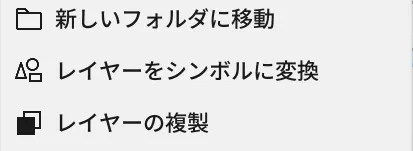
Section titled “Verification”- Hands-on verified: Checked and captured the displayed panel or menu in the installed app. Convert Layer to Symbol appears between Move to New Folder and Duplicate Layer. The published image is a faithful crop of the source screenshot.
- Unverified: Verification covers only the interface shown in the image. All article procedures, effects of setting changes, exported file contents, saving/reopening and the Windows version were not reverified in this capture session.