
Use the Gallery
Verification record: Umoupen 0.9.59 build 628 (2026-10-05) · Verification scope
The Gallery lists reusable assets such as Symbols, Drawings, Images, Media, and Models. Placing a Symbol adds an instance referencing its source to the Stage.
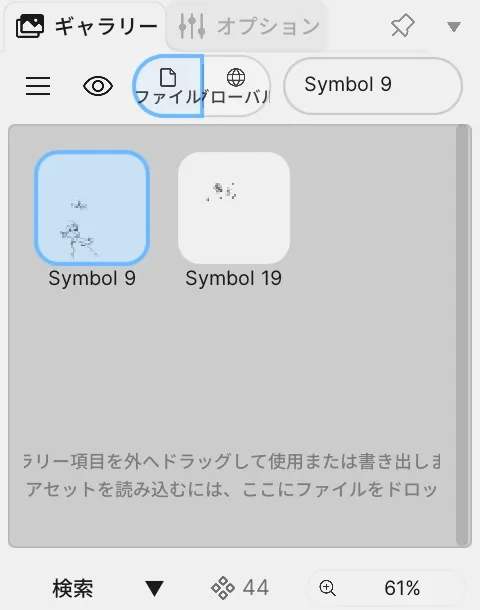
Location: Layout → Gallery
Shortcut: ⌘G (macOS) / Ctrl+G (Windows): Convert Selection to Symbol
Basic steps
Section titled “Basic steps”- Choose
Layout → Gallery. - Find an asset using the list, preview, tags, or search.
- Select the destination layer. Use a Vector Layer for a Symbol.
- Drag the asset onto the Stage.
Place a Symbol
Section titled “Place a Symbol”This example drags “Symbol 7” from the Gallery onto the Stage. Releasing the mouse places the Symbol at that position.
Use Move and transform to adjust its position or size.
Create a Symbol from selected content
Section titled “Create a Symbol from selected content”To convert selected Stage content to a Symbol, select it and choose Convert Selection to Symbol from the right-click menu. You can also press Cmd+G (Ctrl+G on Windows). The command creates a Symbol and replaces the Stage selection with an instance. To convert an entire layer, see Create and reuse symbols.
Controls at the top of the panel
Section titled “Controls at the top of the panel”| Name | What it does |
|---|---|
| List / Grid | Switches between list and thumbnail views. |
| Preview | Shows a preview of the selected asset. |
| Add Tags | Adds tags used to find assets. |
| Search | Filters assets by name or tag. |
At the bottom of the panel, you can sort by Name, check the asset count, and adjust the thumbnail size.
Main items
Section titled “Main items”| Item | What it does |
|---|---|
| Asset list | Shows reusable assets. When there are no assets, instructions for adding them appear in the center. |
| Drag to the Stage | Places an instance or copy. |
| Show in Gallery | Shows the source data for a placed Symbol. |
| Edit in Place | Edits the source data while showing the surrounding contents. |
Make an asset available in other files
Section titled “Make an asset available in other files”The Gallery separates assets that live in the open file from a Global Gallery you can use from any file. Put assets you reuse often into the global side so a new file can place them right away.
- Show In This File in the Gallery.
- Right-click the symbol and choose Add to Global Gallery, or drag it onto the Global segment.
- Open another file and place it from Global.
While the global side is empty, the Gallery shows those steps in place of the list.
What happens at each drop target
Section titled “What happens at each drop target”| Drop target | Result |
|---|---|
| Stage | Places a Symbol or another asset. Place Symbols on a Vector Layer. |
| Reference panel | Adds a Symbol as a reference asset. |
| Stage (Audio asset) | Creates an Audio Layer. |
| Outside Umoupen | Exports the asset in a form that can be used elsewhere. Some assets cannot be exported because of their type or license. |
If the message “Symbols can only be added to Vector Layers” appears when you place a Symbol, select a Vector Layer and drag it again.
Right-click an asset
Section titled “Right-click an asset”The available items depend on the asset type.
| Asset | Main operations |
|---|---|
| General asset | Rename, duplicate, edit, open externally, export, or delete |
| Script | Edit Script or Apply Script |
| Convertible asset | Convert to a native Umoupen asset |
| Character asset | Mark as Actor |
| Shared asset | Claim Ownership or Request Ownership |
For organizing names, folders, tags, and storage locations, see Organize the Gallery.
Related articles
Section titled “Related articles”Verification
Section titled “Verification”- Hands-on verified: Checked the displayed interface in installed build 628 and published a faithful crop. This example shows the file asset list. List, Preview, File, Global and Search controls are at the top.
- Unverified: Verification is limited to the captured interface and the actions described above. All article procedures, setting effects, output files, saving/reopening and Windows behavior were not reverified.