
Navigator
Verification record: Umoupen 0.9.59 build 628 (2026-10-05) · Verification scope
The Navigator is a panel showing a small preview of the full canvas and the currently visible area. Use that preview to move the Stage view without changing drawing tools.
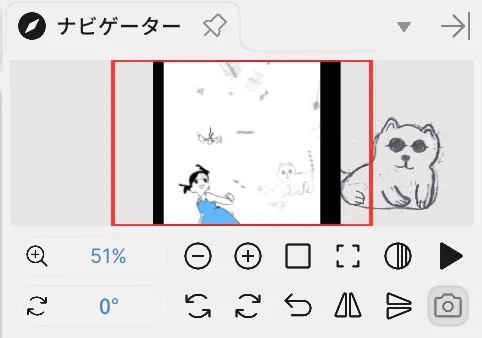
The red outline marks the area currently visible on the Stage.
Location: Panels → Show Panels → Navigator
Basic steps
Section titled “Basic steps”- Choose
Panels → Show Panels → Navigator. - Drag inside the preview to move the visible area.
- Use the zoom and display controls along the bottom to adjust the view.
Controls along the bottom
Section titled “Controls along the bottom”| Item | What it does |
|---|---|
| Zoom | Adjusts the preview scale in the Navigator. |
| Grayscale | Switches the preview to black and white. |
| Camera | Appears when there is a Camera Layer and shows the Camera framing. |
| Play / Pause | Plays or pauses the animation in the Navigator. |
| Fit to Window | Fits the entire canvas within the panel. |
When more than one view is available, Select View and Sync with Editor also appear.
Select the view to display
Section titled “Select the view to display”- Press Select View.
- Choose a type from Pages / Cameras.
- Select one of the thumbnails that appears.
When Sync with Editor is on, the Navigator follows when you change the view in the Editor. If these controls do not appear, check whether the project contains selectable pages, cameras, or other views.
Inside the preview
Section titled “Inside the preview”| Item | What it does |
|---|---|
| Visible area | Indicates the area currently visible on the Stage. |
| Drag | Moves the Stage view without changing the drawing tool. |
To reset only the view angle, use Reset Rotation in the Top Center Toolbar. For details, see Pan, zoom, and rotate the Stage.
Related articles
Section titled “Related articles”Verification
Section titled “Verification”- Hands-on verified: Recaptured Navigator at frame 1, matching the previously selected article image. Checked the red view rectangle, 51% zoom, 0° rotation and lower view controls.
- Unverified: Verification is limited to the captured interface and the actions described above. All article procedures, setting effects, output files, saving/reopening and Windows behavior were not reverified.