
Reading the Settings menu
Verification record: Umoupen 0.9.59 build 628 (2026-10-05) · Verification scope
Preferences adjust the working environment, including display, input, and layout. This menu also includes current-project settings and commands. DPI expresses the number of dots per inch for printing and differs from the image’s pixel dimensions.
The Settings gear collects file, export, view, layout, and other actions.
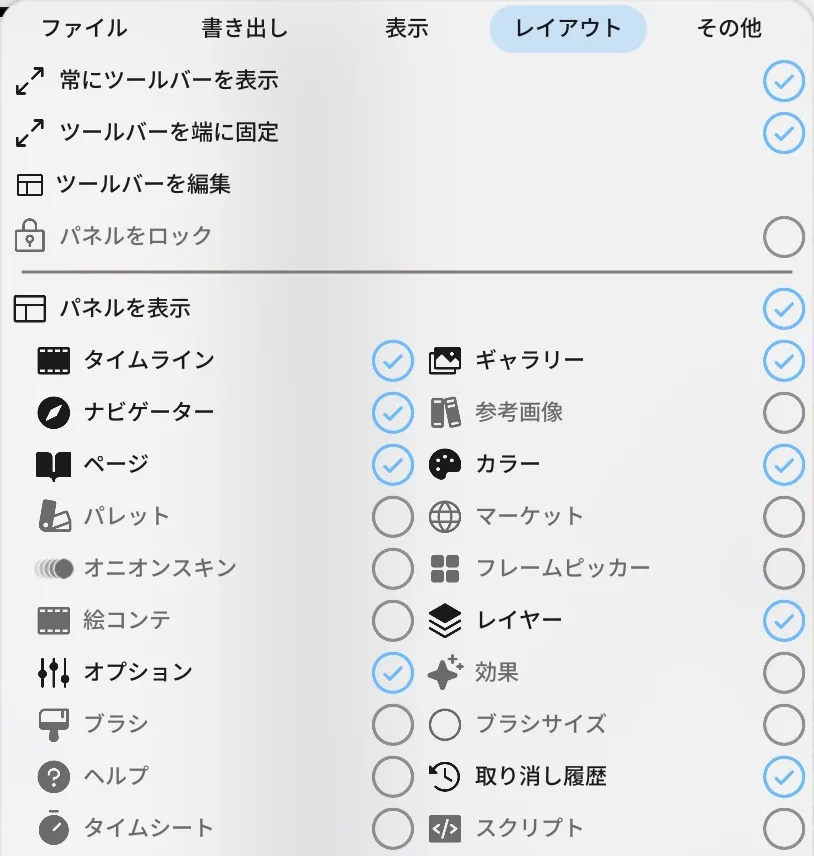
The upper part of the Layout tab. Blue checkmarks on the right indicate enabled items; empty circles indicate disabled items.
The gear at the upper right of the Splash Screen opens separate global settings, with File, View, and More tabs. See global settings on the Splash Screen.
Location: Top Center Toolbar → Settings (gear)
Shortcut (macOS): ⌘,
Shortcut (Windows): Ctrl+,
Basic layout
Section titled “Basic layout”
Click the gear to the right of the magnifying glass, or press ⌘, to open Settings.
- Click the Settings gear in the Toolbar at the top center of the screen.
- Choose File, Export, View, Layout, or More.
- Select the action to run or the setting to change.
Main sections
Section titled “Main sections”| Tab or section | Main contents | Related articles |
|---|---|---|
| File | Create, open, save, import, Auto Save, and File Snapshots | Save a project / Auto Save, recovery, and snapshots |
| Export | Output format, range, size, transparency, camera, and layer output | Configure export settings |
| View | Theme, display scale, input, zoom, editing aids, and rendering quality | Adjust the display / Configure pen input |
| Layout | Panel and Toolbar visibility, locking, and saved layouts | Show and arrange panels |
| More | Bug reports, keybinds, Brush Folder, My Library, Splash Screen, updates, and licensed devices | Report a bug / Shortcuts and keybind presets / Update Umoupen |
File settings
Section titled “File settings”| Item | What it configures | When it appears |
|---|---|---|
| Filename | Shows or changes the open project’s name. | When a project is open |
| New / Close / Open / Import File | Creates, closes, opens, or imports a project. | Always |
| Import Image Sequence / Import as Shots | Places sequential images on the Timeline or creates several Shots from them. | Always |
| Save / Save All / Save As / Revert File | Saves the current file, saves it under another name, or returns to the latest saved state. | When a project is open |
| Drawing, Book, and Animation templates | Saves the current file as a template for a new file of the same type. | When a compatible project is open |
| Use Fixed Thumbnail | Fixes the preview image used in the file list to the currently selected image. | When a project is open |
| Background Color / Set as Default | Changes the current Background Color and saves it as the initial color for new files. | When a project is open |
| Paper / Opacity / Density | Adjusts paper color, transparency, and density on Book or notebook pages. | When a compatible page is open |
| FPS | Sets the number of frames played per second. | Animation |
| Symbol Size | Sets the width and height of the Symbol being edited. | While editing a Symbol |
| Stage Size / Resize Stage | Shows the drawing area’s dimensions and resizes it, optionally with its contents. | When a project is open |
| Document DPI | Sets resolution information for printing or image transfer. | In compatible projects |
| Edit Margins / Show Margins | Edits inner, outer, top, and bottom page margins and toggles their guides. | On Book pages |
| Instancing: This File / New Files | Sets how the same drawing is reused, separately for the current file and new-file defaults. | In files that support the Timesheet |
| Undo History Size | Sets how much action history Undo retains. | Always |
| Auto Save / Auto Save Period | Enables or disables Auto Save and sets its interval. | In files that can be saved |
| File Snapshots / Show Snapshot Folder | Manages snapshots of saved states and their storage location. | In files that can be saved |
| Offer to restore open files after an unexpected quit | Shows a recovery prompt on the next launch after an unexpected shutdown. | Always |
Items under More
Section titled “Items under More”| Item | What it does | When it appears |
|---|---|---|
| Report a Bug | Sends a problem description, screenshot, optional contact address, and optional project from the app. | Sending requires a valid license |
| Edit Keybinds | Edits command keys and presets. | Always |
| Brush Folder: | Lets you Show, Select, and Import the brush storage location. | Always |
| Open Splash Screen | Opens the launch screen for creating work or choosing Recent Files. | Always |
| Clear User Config | Restores tool layouts, display, input, and other user settings to their initial state. | Always |
| Acknowledgements | Shows libraries and credits. | Always |
| Auto Update | Toggles automatic update checks. | Always |
| Version / Release Notes | Shows the current build and release notes. | Always |
| Check for updates | Checks manually for available updates. | Always |
| My Devices | Shows licensed devices and manages available slots. | After license activation |
Clear User Config is a reset action that requires entering Yes, reset all my preferences in the confirmation field. It restores tool layouts, display, input, and other user settings, so do not use it for routine adjustments.
Sync personal settings with My Library
Section titled “Sync personal settings with My Library”My Library syncs your personal setup across your devices. It is separate from Studio Library, which is shared with everyone in a studio.
- Open My Library in Settings and enable Sync on this device.
- Under Sync categories, choose App preferences, Saved workspaces, and/or Shortcut and effect presets.
- Run Sync now.
- Check the Last sync time, storage usage, and pending-item count.
If a conflict appears, choose Keep this device’s value or Use synced value for that item. Apply a saved workspace with Use saved workspace.
View settings
Section titled “View settings”| Item | What it configures | When it appears |
|---|---|---|
| Theme / Gray Theme | Switches the overall color scheme and a low-saturation appearance. | Always |
| UI Translucency / Rounding / UI Accent | Adjusts panel transparency, corner shape, and selection color. | Always |
| Language | Switches Umoupen’s display language. | Always |
| UI Scale / Font Scale | Adjusts interface controls and text independently. | Always |
| Outline Opacity / Divider Dark / Light | Adjusts boundary strength and the appearance of dark and light dividers. | Always |
| Tooltips | Toggles guidance showing icon names. | Always |
| Hi-DPI | Toggles high-resolution rendering. | Always |
| Use Raw Pen Input | Uses raw input values received from the tablet. | With compatible input hardware |
| Ruler | Toggles the on-screen ruler. | Always |
| Invert Zoom Direction / Horizontal Zoom Drag / Zoom Sensitivity | Sets zoom direction, drag direction, and response strength. | Always |
| Disc Rotation Drag | Toggles disc-like dragging to rotate the Stage. | Always |
| Stabilizer Line | Draws a line from the cursor to the point being painted while the stabilizer holds the brush back. | When a drawing tool is selected |
| Fit to Window Gesture | Toggles the gesture that fits the entire Stage in the window. | Always |
| Symbol Origin Crosshair | Shows the origin as a crosshair while editing a Symbol. | While editing a Symbol |
| Layer Hover Highlight | Highlights the Stage contents of the layer under the pointer. | While pointing to a layer |
| Drawing Cursor | Selects the drawing cursor, such as the brush shape or a crosshair. | Always |
| Frame Style | Selects the appearance of frames in the Timeline. | While using the Timeline |
| Color Pair System | Configures how Stroke and Fill color pairs are shown and switched. | Always |
| Gizmo | Toggles handles for moving selected items or 3D elements. | During compatible selection or 3D operations |
| Symbol Edit Ghosting | Shows surrounding contents faintly while editing a Symbol. | While editing a Symbol |
| Dock Preview Reflow | Reflows surrounding panels while previewing a new dock location. | While changing the panel layout |
| Stage Rotation / Zoom / Canvas Scaling | Adjusts Stage rotation, view scale, and canvas rendering scale. | Always |
| Show Pasteboard Contents / Background Color Pasteboard | Toggles contents outside the Stage and extends the Background Color into that area. | Always |
| Model Bearings | Toggles an orientation aid for 3D models. | In a 3D view |
| GPU Mode | Selects how GPU rendering is used. | Always |
| Anti-Aliasing / No Fill Bezier / Vector Rendering | Configures line smoothing, unfilled Beziers, and Vector display rendering. | With compatible GPU or Vector display |
| Pixel Preview | Displays Vectors at the Stage’s export resolution to preview rasterized edges without changing the artwork. | While displaying Vectors |
Layout settings
Section titled “Layout settings”| Item | What it configures | When it appears |
|---|---|---|
| Always Show Toolbar / Flush Toolbars | Keeps Toolbars visible and aligns them with the screen edge. | Always |
| Edit Toolbar | Edits visible and hidden buttons and their order. | Always |
| Lock Panels | Locks panel docking and resizing. | Always |
| Show Panels | Opens each panel in the list individually. | Always |
| Timesheet Timeline | Switches between the regular Timeline and the Timesheet view. | While using the Timeline |
- Export formats and ranges are explained in Configure export settings.
- For pen input, check Use Raw Pen Input under View and see Configure pen input.
- Bug reporting, updates, and device management are under More.
Related articles
Section titled “Related articles”Verification
Section titled “Verification”- Hands-on verified: Opened Settings with ⌘, and confirmed the File, Export, View, Layout and More tabs. Switched to Layout, captured Toolbar and panel visibility controls, and closed the menu.
- Unverified: Results after changing settings, all items in tabs other than Layout, sync and persistence after saving or restarting, and Windows were not verified.