
Report a bug
Verification record: Umoupen 0.9.59 build 628 (2026-10-05) · Verification scope
A log records application activity, errors, and related information. A diagnostic recording tracks interactions and has a separate entry point here. Sanitizing / scrubbing removes information such as sensitive data from material prepared for sending; the contents still need checking before attachment.
Send a description of the problem and any needed supporting material from Umoupen’s bug-report screen.
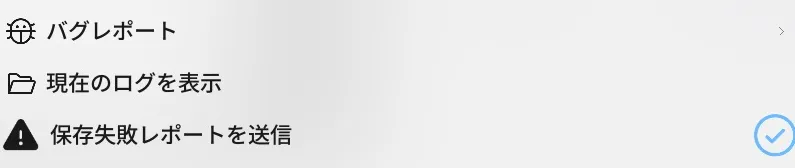
Location: Settings (gear) at the top center → More → Report a Bug
Report from the app
Section titled “Report from the app”- Open Settings (the gear) at the top center of the screen.
- Choose More → Report a Bug.
- Enter a short problem name in Title.
- In Details, describe what happened, what you expected, and how to reproduce it.
- If needed, set Contact email (optional), Add Screenshot, and Include this file.
- Review what will be sent and who may see it, then choose Send Report.
- The report is complete when Report sent — ID appears.
Sending a report requires a valid license.
Check submitted reports
Section titled “Check submitted reports”Submitted reports appear in the Bug Reports list with their status, messages, and Discord links. The list displays No bug reports yet when it is empty and Bug reports could not be loaded. when loading fails.
Check what will be sent
Section titled “Check what will be sent”- A sanitized support log of up to 512 KiB is attached automatically.
- The screen states that the private email, IP hash, and project data are deleted after 90 days.
- It states that the title, details, app information, screenshots, and the scrubbed log may be posted to Discord. Check what the log holds before you send it.
- Enabling Include this file attaches a private snapshot of the current live project.
The implementation limits each screenshot to 1 MiB, the current file to 64 MiB, and the complete report to 70 MiB.
Record a diagnostic log manually
Section titled “Record a diagnostic log manually”Use this when a developer asks for a detailed log or you cannot send the in-app report.
- Select the magnifying glass at the top center, or press
Cmd+P(Ctrl+Pon Windows), to open Search. - Search for and select Diagnostic Logging.
- Confirm that Diagnostic logging on and the log location appear.
- Reproduce the problem once.
- Select Diagnostic Logging again and confirm Diagnostic logging off.
- At the displayed location, prepare the most recently modified
umoupen-*.logfile.
Turn logging off after reproducing the problem.
Send it manually through Discord
Section titled “Send it manually through Discord”If you cannot use the in-app report, join Discord through Community on the official Umoupen website. Include the build, OS, reproduction steps, expected result, actual result, and the log.
When diagnostic recording is requested
Section titled “When diagnostic recording is requested”If a developer asks for an interaction recording, choose Toggle Diagnostic Recording from Search.
- Confirm Diagnostic recording on, then reproduce the problem.
- Select it again after reproducing the problem and confirm Diagnostic recording off.
- Search for View Replays Folder and check the generated recording.
A diagnostic recording may contain your actions and artwork. Check the files before attaching them.
Before sending
Section titled “Before sending”- Logs may contain file names and storage paths.
- After a crash on macOS, the
.ipscrash report from the same time can also help. - Attach an artwork file only when it is needed to reproduce the problem and is safe to share.
If saving fails
Section titled “If saving fails”File → Send Save Failure Reports configures reports for save failures. For other problems, use More → Report a Bug from the gear menu.
Related articles
Section titled “Related articles”Verification
Section titled “Verification”- Hands-on verified: Checked and captured the displayed panel or menu in the installed app. The Other tab contains Bug Report, Show current log and Send save failure reports controls. The published image is a faithful crop of the source screenshot.
- Unverified: Verification covers only the interface shown in the image. All article procedures, effects of setting changes, exported file contents, saving/reopening and the Windows version were not reverified in this capture session.