
Opacity, blend mode, and tint
Verification record: Umoupen 0.9.59 build 628 (2026-10-05) · Verification scope
Opacity controls how transparent a layer appears. Blend mode determines how its colors combine with layers below, while Tint adds a color tint across the layer. Label Color identifies the layer in the list; its role differs from settings that change the artwork colors.
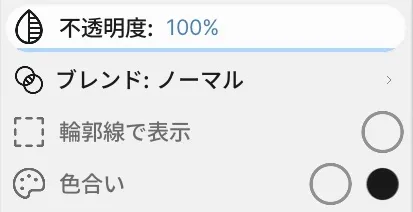
Location: Layers panel → Properties for the target layer
Basic use
Section titled “Basic use”- Right-click the target in the Layers panel.
- Set the needed value under Opacity, Blend, Tint, or Label Color.
- Check the composite with the layers above and below on the Stage.
When an opacity slider is visible directly in a Layers or Timeline row, you can adjust the same value without opening the context menu.
Hover a Blend Mode candidate to preview its composite on the Stage before committing it. Moving the pointer away restores the original mode; clicking applies the candidate.
Main options
Section titled “Main options”| Option | What it does |
|---|---|
| Opacity | Controls transparency for the entire layer. |
| Blend | Controls how the layer combines with the layer below. |
| Tint | Adds a color tint to the entire layer. |
| Label Color | Sets an identifying color in the Timeline and Layers panel. |
Settings for specific layer types
Section titled “Settings for specific layer types”| Target | Settings in the context menu |
|---|---|
| Screen Tone | Lines per Inch, Dot Shape, Angle, and Scale. |
| Vector Layer | 1 px lines, line jitter, amount, wavelength, amplitude, and frequency. |
These settings appear only when they apply to the selected layer type.
Related articles
Section titled “Related articles”Verification
Section titled “Verification”- Hands-on verified: Checked and captured the displayed panel or menu in the installed app. The layer context menu groups opacity, blend mode, outline and tint controls. The published image is a faithful crop of the source screenshot.
- Unverified: Verification covers only the interface shown in the image. All article procedures, effects of setting changes, exported file contents, saving/reopening and the Windows version were not reverified in this capture session.