
Timeline thumbnails, Frame Roller, and range linking
Verification record: Umoupen 0.9.59 build 628 (2026-10-05) · Verification scope
A thumbnail is a small preview of a drawing. Frame Roller lets you check surrounding drawings in sequence. You can also link the playback range to the content, or use Timeline Tracking to keep the current position visible.
| What you want to do | Control |
|---|---|
| Find a frame by its drawing | Thumbnail View |
| Check surrounding drawings in sequence | Frame Roller |
| Update the end frame as content changes | Link animation range to content |
| Keep the current frame visible during playback | Timeline Tracking |
Location: View and range controls at the top of the Timeline
Shortcut (macOS): ⇧T (Thumbnail View) / ⌘L (Link animation range to content)
Shortcut (Windows): Shift+T (Thumbnail View) / Ctrl+L (Link animation range to content)
Show thumbnails
Section titled “Show thumbnails”Press Shift+T in the Timeline to show thumbnails in cells that contain artwork. Press it again to return to the standard view.
If thumbnails do not appear
Section titled “If thumbnails do not appear”Check that Thumbnail View (On) is enabled and that the cell contains artwork. If the selected cell is empty, move to one with a drawing.
Use Frame Roller and range linking
Section titled “Use Frame Roller and range linking”Step through drawings
Section titled “Step through drawings”Use Frame Roller in the Timeline to check surrounding drawings in sequence.
Match the end frame to the content
Section titled “Match the end frame to the content”- Press
Cmd+L/Ctrl+Lto enable Link animation range to content. - Start is set to frame 1 and End follows the last content frame.
- Toggle the link off to set Start and End manually.
Follow playback
Section titled “Follow playback”Enable Timeline Tracking when playback moves beyond the visible Timeline range. The Timeline scrolls to keep the current frame visible.
Related articles
Section titled “Related articles”Verification
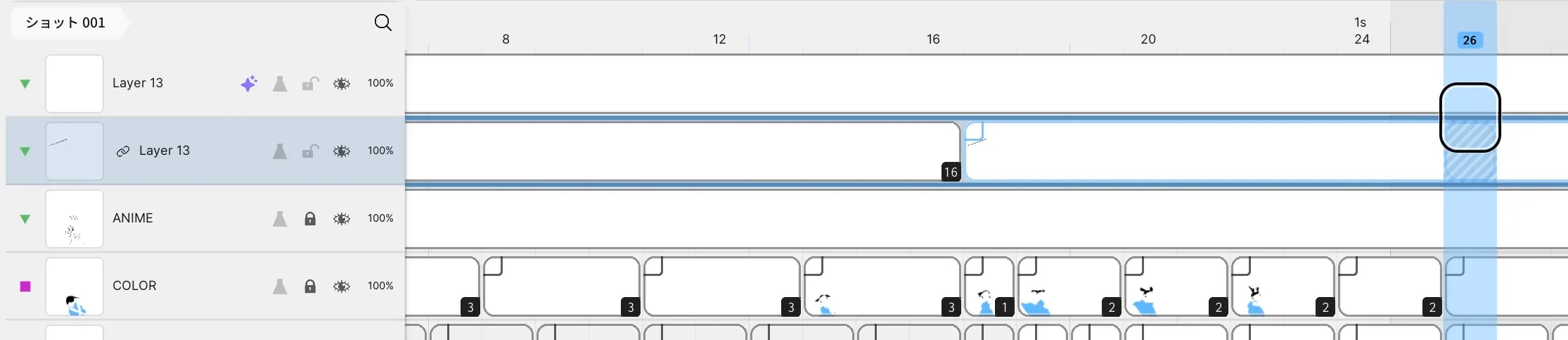
Section titled “Verification”- Hands-on verified: Checked the displayed interface in installed build 628 and published a faithful crop. With thumbnails enabled, the COLOR row shows small drawing previews and exposure lengths in its cells.
- Unverified: Verification is limited to the captured interface and the actions described above. All article procedures, setting effects, output files, saving/reopening and Windows behavior were not reverified.