
Symbol instances and Edit in Place
Verification record: Umoupen 0.9.62 build 660 (2026-10-21) · Verification scope
A Symbol instance is a Symbol placed on the Stage. Instances of the same Symbol share its source, while each placement can have its own position, scale, and playback settings.
Edit in Place lets you edit the Symbol source while seeing it in relation to the surrounding artwork. Changes to the contents also affect other instances referencing the same source.
See Create and reuse symbols for the relationship between Symbols, their source, and the Gallery.
Location: Symbol Instance on the Stage / Layers panel
Choose what to edit
Section titled “Choose what to edit”| What you want to do | What to edit |
|---|---|
| Change position, scale, color, or playback for this placement only | Symbol instance |
| Revise the contents used by Symbols that share the same source | Symbol source |
Change only this placement
Section titled “Change only this placement”- Select the Symbol instance on the Stage.
- Use Move to adjust its position, scale, and rotation.
- Adjust Tint, Opacity, or Symbol Playback as needed.
- Select another instance and confirm that its placement settings did not change.
To find the source asset, right-click the instance and choose Show in Gallery.
Change the playback mode
Section titled “Change the playback mode”Playback controls appear when the selected Symbol contains two or more frames. Animations appears when the Symbol contains more than one animation.
- Set Move to Contents and select a Symbol instance containing animation.
- Open Layout → Options and scroll down to the playback controls.
- Choose Loop, Once, Bounce, or Stop.
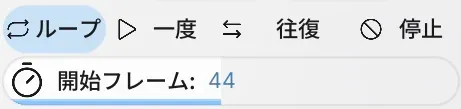
| Mode | Playback |
|---|---|
| Loop | Repeats the animation. |
| Once | Plays the animation once. |
| Bounce | Alternates forward and backward playback. |
| Stop | Holds the drawing at the start frame. |
Change the start frame
Section titled “Change the start frame”Start Frame selects where playback begins inside the Symbol. It is separate from moving the instance along the parent timeline.
Two instances of the same Symbol play together for one full cycle. Changing Start Frame offsets the same animation between instances.
Left: Start Frame 1 / Right: Start Frame 44
To keep a particular drawing visible, choose Stop, then adjust Start Frame.
Edit the source in place
Section titled “Edit the source in place”- Right-click the instance you want to revise and choose Edit in Place.
- Edit the Symbol contents while the surrounding scene is shown as a ghosted reference.
- Confirm that the edit is reflected in Symbol instances that use the same source.
- Use the parent level in the breadcrumb or Exit Symbol to return to the parent scene.
If it does not work
Section titled “If it does not work”| Symptom | Check this first |
|---|---|
| Symbol controls do not appear | Select the Symbol instance on the Stage, not the whole layer. |
| Other placements changed when you intended to change only one | Edit in Place changes the source. Return to the parent and use Move, Tint, or Opacity on the instance instead. |
| You cannot return to the parent scene | Choose the parent level in the breadcrumb, or run Exit Symbol. |
| You cannot find the source asset | Right-click the instance and choose Show in Gallery. |
Main options
Section titled “Main options”| Option | What it does |
|---|---|
| Instance Transform | Controls position, scale, and rotation for this placement. |
| Symbol Playback | Controls how the animation plays. |
| Symbol Tint / Opacity | Changes the appearance of this instance. |
| Show in Gallery | Shows the source asset in the Gallery. |
| Edit in Place | Edits the source while surrounding artwork appears as a ghosted reference. |
Related articles
Section titled “Related articles”Verification
Section titled “Verification”- Verified from the current implementation: Confirmed in the build's built-in translations: Exit Symbol for returning to the parent, the Loop, Once, and Bounce playback modes, and Start Frame. In the executable's strings, the English key Bounce sits with the instance settings.
- Unverified: The label of the Stop playback mode (the translation table has both Stop and Stopped), the on-screen display and operation in this build, deeply nested symbol hierarchies, and the Windows version were not verified.