
Playback, looping, and playback range
Verification record: Umoupen 0.9.59 build 628 (2026-10-05) · Verification scope
A playback range is the interval between the start and end of playback. Looping repeats the target by returning to its beginning. The Timeline’s playback range and each layer’s repeat settings are separate controls.

To extend selected drawings into a repeated sequence on the Timeline, see Drag selected frames to create a loop.
Location: Timeline playback toolbar
Playback methods
Section titled “Playback methods”| Command | How playback starts |
|---|---|
| Play Animation | Plays from the current position and returns to that position after stopping. |
| Play From Start | Plays from the beginning of the playback range. |
| Play Through | Continues playback across pages or shots. |
Set the playback range
Section titled “Set the playback range”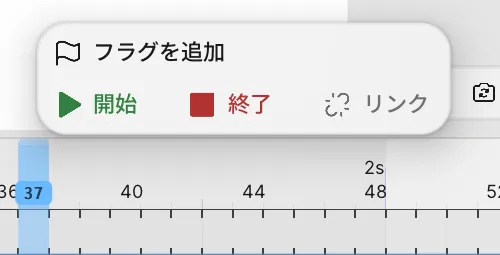
- Right-click near the frame number where you want playback to begin, then choose Start.
- Right-click the last frame in the same way and choose End. Green and red markers show the two ends of the range.
- Use Play Animation to play from the current position, or Play From Start to play from the beginning of the range.
The playhead moves, and each layer’s drawings change according to their exposures.
Loop a layer
Section titled “Loop a layer”To loop a layer, right-click the layer and toggle Loop Playback.
Loop mode sets how the repeat behaves. Once stops after one pass, Loop returns to the start and repeats, and Ping Pong and Bounce reverse direction at the end and play backward.
If playback does not cover the expected range
Section titled “If playback does not cover the expected range”- Check the Start and End positions.
- In a project that uses shots or pages, check the current shot or page as well.
Related articles
Section titled “Related articles”Verification
Section titled “Verification”- Hands-on verified: Checked and captured the displayed panel or menu in the installed app. The lower Timeline toolbar groups playback and previous/next-frame controls. The published image is a faithful crop of the source screenshot.
- Unverified: Verification covers only the interface shown in the image. All article procedures, effects of setting changes, exported file contents, saving/reopening and the Windows version were not reverified in this capture session.