
Configure export settings
Verification record: Umoupen 0.9.59 build 628 (2026-10-05) · Verification scope
Content bounds are the bounding area enclosing the artwork. They use a different cropping reference from camera framing. Timecode is a text display identifying a time or frame position in the footage.
Set the size, background, camera, and layer handling before exporting.
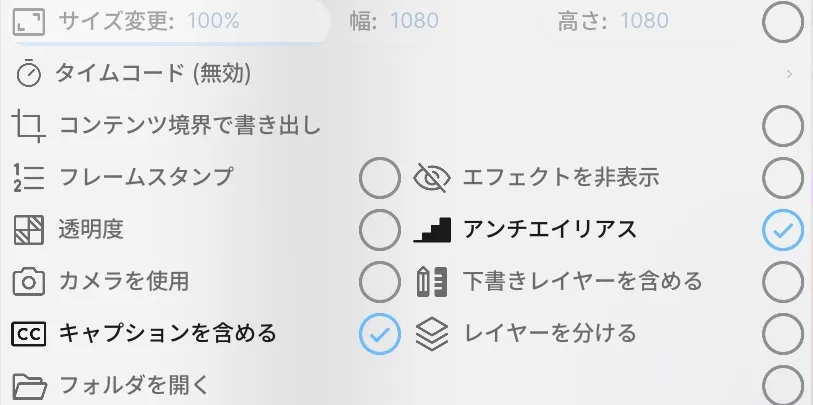
- Open Export from the gear in the Top Center Toolbar.
- Choose the range and format, then configure shared settings such as size, transparency, and camera.
- After exporting, open Export Location and inspect the first file.
Location: Export menu settings / Settings → Export
Size and framing
Section titled “Size and framing”| Option | What it does |
|---|---|
| Percent | Scales the output relative to the original size. |
| Width / Height | Sets the size from either its width or height. |
| Custom Export Size | Uses the specified output dimensions. |
| Export at Content Bounds | Crops to the bounding area of the artwork. |
| Use Cameras | Renders through the visible camera layers at the Document Size. When off, exports each shot’s whole Stage at that shot’s Stage Size. |
| Export With Transparency | Makes the background transparent. |
Included content and saving
Section titled “Included content and saving”| Option | What it does |
|---|---|
| Include Draft Layers in Export | Includes Draft Layers in the output. |
| Include Captions in Export | Includes shot captions. |
| Frame Stamp | Overlays a frame stamp on the output. |
| Timecode | Adds a timecode to the output. |
| Export Layers Separately | Creates a separate file for each layer. |
| Open Folder After Export | Opens the output folder when the export finishes. |
Choose between every-frame, cel-based, and per-layer sequence output using image-sequence output units.
Camera and Content Bounds use different cropping references. Before delivery, also check the Draft, Caption, Frame Stamp, and Timecode states.
Export just one format
Section titled “Export just one format”To export a single format while keeping your usual format checkboxes selected, use Export this format only on the format you want. Commands that export several formats use the checked formats.
The commands for exporting multiple formats are Export Shot in Selected Formats, Export All Shots Separate in Selected Formats, and Export All Shots Combined in Selected Formats. Each of them uses every checked format.
Configure timecode text
Section titled “Configure timecode text”Timecode configures the overlay in the viewport and rendered exports. Print Value accepts these tokens.
| Token | Content |
|---|---|
[Timecode] | Timecode |
[ShotName] | Shot name |
[ShotNumber] | Shot number |
[ShotCount] | Shot count |
[Frame] | Frame |
[Duration] | Duration |
Use \n for a new line. You can offset the starting value by a number of frames and adjust text size and Text Color. A text size of 100% equals 5% of the frame height. After exporting, check the first and last images for numbering and placement.
Shot Duration controls whether the duration is shown, and Duration Units switches its unit between Frames and Seconds. Repeat decides whether the timecode restarts for each shot (Per Shot) or runs across the whole timeline (Whole Timeline).
Related articles
Section titled “Related articles”Verification
Section titled “Verification”- Hands-on verified: Checked and captured the displayed panel or menu in the installed app. The Export tab contains common size, timecode, transparency, camera and caption settings. The published image is a faithful crop of the source screenshot.
- Unverified: Verification covers only the interface shown in the image. All article procedures, effects of setting changes, exported file contents, saving/reopening and the Windows version were not reverified in this capture session.