
Adjust the display
Verification record: Umoupen 0.9.59 build 628 (2026-10-05) · Verification scope
The UI comprises interface controls such as buttons and panels. UI Scale changes their displayed size; Stage zoom changes the apparent size of the artwork. A gizmo provides handles for moving or transforming a selection, and a HUD overlays information on the working view. Anti-aliasing adjusts pixel colors to make stair-stepped lines and edges less conspicuous.
Adapt text and line size, explanations, motion, and colors to your workspace.
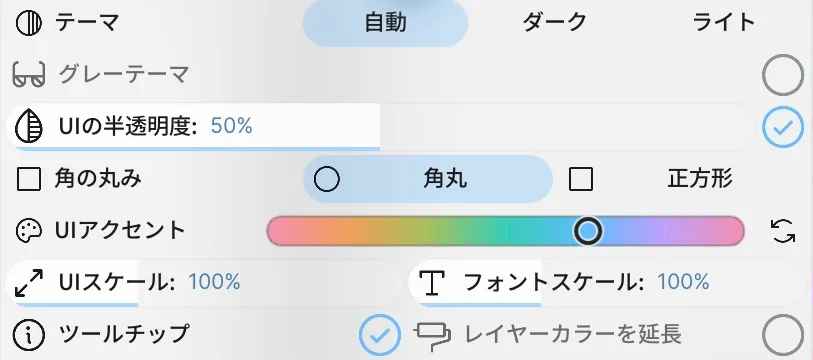
Location: Settings → View / Stage view controls
Shortcut (macOS): ⌘8 (Fit Cut Grid to Window) / ⌘9 (Fit to Window) / ⌘0 (Actual Size)
Shortcut (Windows): Ctrl+8 (Fit Cut Grid to Window) / Ctrl+9 (Fit to Window) / Ctrl+0 (Actual Size)
Main settings
Section titled “Main settings”| Setting | What it does |
|---|---|
| Theme: Auto / Dark / Light | Switches the UI color scheme. |
| Gray Theme / UI Translucency / Rounding / UI Accent | Adjusts UI saturation, transparency, corner shape, and accent color. |
| Language / UI Scale / Font Scale | Adjusts the display language, overall UI size, and text size. |
| Outline Opacity / Divider Dark / Light | Adjusts the appearance of selection outlines and dividers. |
| Hi-DPI | Adjusts rendering for high-density displays. |
| Canvas Scaling | Adjusts how the canvas view is scaled. |
| Tooltips | Shows a short explanation when you point to a button. |
| Drawing Cursor / Frame Style / Color Pair System | Selects the cursor, frame appearance, and color-control system. |
| Ruler / Stabilizer Line / Layer Hover Highlight | Shows the pixel ruler, stabilization line, and Stage highlight for a layer. |
| Invert Zoom Direction / Horizontal Zoom Drag / Zoom Sensitivity | Adjusts zoom direction, drag direction, and wheel sensitivity. |
| Disc Rotation Drag / Fit to Window Gesture | Toggles disc-like rotation and the gesture for fitting the Stage to the window. |
| Symbol Origin Crosshair / Symbol Edit Ghosting | Adjusts the origin and surrounding ghost display while editing a Symbol. |
| Gizmo | Selects the appearance of selection and transform gizmos. |
| Dock Preview Reflow | Moves panels to reflect the previewed docking position. |
| Model Bearings / GPU Mode / Anti-Aliasing | Adjusts 3D orientation aids, GPU protection, and rendering smoothness. |
| Pixel Preview | Displays vectors at the Stage’s export resolution to preview their rasterized edges. |
| Full Screen | Expands the workspace to fill the screen. |
| HUD | Shows or hides the information display at the lower right of the Stage and changes its corner. |
Basic steps
Section titled “Basic steps”- Open the display-related items in Settings.
- Change one setting at a time and check the text, cursor, and canvas.
- Restore the previous value if the display becomes difficult to use.
Preview exported edges with Pixel Preview
Section titled “Preview exported edges with Pixel Preview”- Enable Pixel Preview under View in Settings.
- Check the vector edges on the Stage.
The Stage displays the rasterized edges at its export resolution. Only the display changes; the artwork data and exported result do not.
If the display is hard to read
Section titled “If the display is hard to read”- Check Theme and Hi-DPI first.
- Turn on Tooltips if a button’s purpose is unclear.
- Use Stage Zoom to magnify the artwork itself.
You can show or hide the HUD, move it to another corner, and edit its Zoom value directly.
Draw and scale on the pixel grid
Section titled “Draw and scale on the pixel grid”Pixel Art Mode in the input settings uses crisp raster sampling and pixel-perfect brushes.
- Shows a pixel grid at high zoom.
- Allows Stage zoom up to 1600%.
After enabling it, zoom into a small raster image and check that the grid appears.
To snap raster-selection scaling to whole multiples such as 1x, 2x, and 3x, use Integer Scaling in the Move Tool options. See Move and transform artwork.
Related articles
Section titled “Related articles”Verification
Section titled “Verification”- Hands-on verified: Checked and captured the displayed panel or menu in the installed app. The upper View tab contains theme, UI scale, font scale and tooltip settings. The published image is a faithful crop of the source screenshot.
- Unverified: Verification covers only the interface shown in the image. All article procedures, effects of setting changes, exported file contents, saving/reopening and the Windows version were not reverified in this capture session.