
Sample colors with the Eyedropper
Verification record: Umoupen 0.9.59 build 628 (2026-10-05) · Verification scope
The Eyedropper samples a color from the displayed artwork. See Stroke and fill colors for its primary, stroke, and fill color destinations.
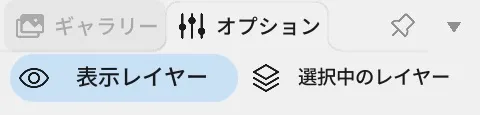
Location: Left toolbar → Eyedropper / Options on the right
Shortcut (macOS): I (Eyedropper) / Hold ⌥ (Sample a color)
Shortcut (Windows): I (Eyedropper) / Hold Alt (Sample a color)
Basic use
Section titled “Basic use”- Select Eyedropper.
- Position the pointer over the pixel you want to sample.
- Click to sample the color. It is assigned to the primary, stroke, or fill color according to the display mode and selected target.
Information in Options
Section titled “Information in Options”Options shows the destination for the sampled color and magnification while sampling.
| Display or state | What it does |
|---|---|
| Primary Color | The color target used in the standard mode. |
| Line / Fill Target | The target indicated by the Eyedropper mark in the legacy mode. |
| Loupe | Magnifies the area around the pointer while sampling so you can choose a pixel. |
Related articles
Section titled “Related articles”Verification
Section titled “Verification”- Hands-on verified: Checked and captured the displayed panel or menu in the installed app. Eyedropper Options choose between visible layers and the selected layers. The published image is a faithful crop of the source screenshot.
- Unverified: Verification covers only the interface shown in the image. All article procedures, effects of setting changes, exported file contents, saving/reopening and the Windows version were not reverified in this capture session.