
Merge, flatten, and rasterize layers
Verification record: Umoupen 0.9.59 build 628 (2026-10-05) · Verification scope
Merging combines multiple layers into one; flattening combines the visible result of all visible layers. Rasterizing converts content such as vectors into a pixel image. See Raster and Vector for the difference in editable formats before and after conversion. These similarly named commands act on different scopes: selected layers, the layer below, all visible layers, or selected vector content.
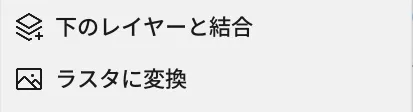
Location: Layers panel → action menu for the target layer
Basic use
Section titled “Basic use”- Check the targets and their order, select the layers, and right-click.
- Choose Merge Layers for multiple selected layers, Merge Down for one selected layer, or Flatten Layers for the full visible result.
- Check the visibility and editable format of the resulting layer.
Main options
Section titled “Main options”| UI label | Target | Result |
|---|---|---|
| Merge Layers | Multiple selected layers | Combines the selected layers into one. |
| Merge Down | The selected layer and the compatible layer directly below it | Combines the two layers into one. |
| Flatten Layers | All visible layers | Flattens the visible result. |
| Convert to Raster | The selected vector or other non-raster layer (right-click the layer) | Converts it to a pixel layer. |
| Line to Fill | The selected vector line | Converts it to a vector fill shape. |
- After rasterization, the original vector curves and individual layer structure are no longer directly editable. Keep a duplicate if needed.
- If there is no compatible layer directly below, Merge Down cannot run.
- You can assign a key to layer merging in the shortcut editor.
Related articles
Section titled “Related articles”Verification
Section titled “Verification”- Hands-on verified: Checked and captured the displayed panel or menu in the installed app. These commands merge with the layer below or convert a layer to raster. The published image is a faithful crop of the source screenshot.
- Unverified: Verification covers only the interface shown in the image. All article procedures, effects of setting changes, exported file contents, saving/reopening and the Windows version were not reverified in this capture session.