
Search
Verification record: Umoupen 0.9.59 build 628 (2026-10-05) · Verification scope
A command is an operation the application can run, such as Save or Export. Search results can contain commands as well as layers and assets themselves.
Search tools, panels, commands, assets, and project contents by entering part of a name.
Location: Top Center Toolbar → Search (magnifying glass)
Shortcut (macOS): ⌘P
Shortcut (Windows): Ctrl+P
Basic steps
Section titled “Basic steps”- Open Search from the Toolbar or a command.
- Enter part of a name.
- Press
↑or↓to move,Enterto select, orEscto close. - Depending on the result, Umoupen runs a command, switches tools, shows a panel, or selects an asset.
Filter prefixes
Section titled “Filter prefixes”| Prefix | Target |
|---|---|
| a: | Actions |
| b: | Brushes |
| s: | Symbols |
| l: | Layers |
| p: | Pages |
| r: | Rooms |
| e: | Entities |
| d: | Dialogue |
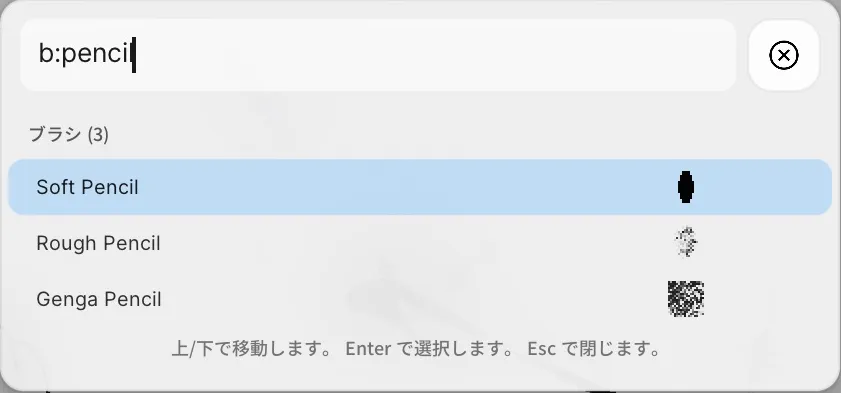
For example, l:camera searches layers for a camera, and b:pencil filters brushes. Available types depend on the project’s contents.
What Search can open
Section titled “What Search can open”- Tools, panels, layer menus, and export commands
- Brushes, Gallery Symbols, layers, pages, rooms, entities, and dialogue
- The Shortcuts screen and Customize Toolbar
- On and off settings for exports
If you cannot find something
Section titled “If you cannot find something”- Try both the localized name and the English UI name.
- A feature that is not available in the current project mode may not appear.
- To change a shortcut itself, open Edit Keybinds.
Related articles
Section titled “Related articles”Verification
Section titled “Verification”- Hands-on verified: Checked and captured the displayed panel or menu in the installed app. Entering b:pencil in Search displays matching pencil brushes. The published image is a faithful crop of the source screenshot.
- Unverified: Verification covers only the interface shown in the image. All article procedures, effects of setting changes, exported file contents, saving/reopening and the Windows version were not reverified in this capture session.