
The Layers panel and active layer
Verification record: Umoupen 0.9.59 build 628 (2026-10-05) · Verification scope
A layer is a unit of a project for keeping drawings or assets separate. Layers above appear in front of layers below. The active layer receives current drawing and pasted content. Use the Layers panel to manage their order and state and select the row to edit.
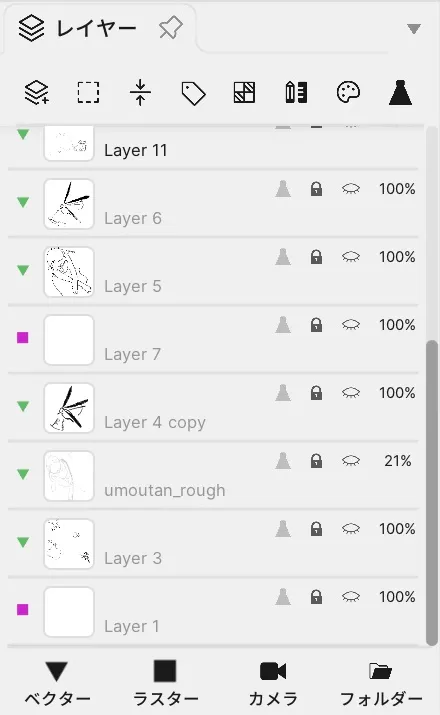
Each row contains visibility, lock and opacity controls. The active layer row is outside this crop.
Location: Panels → Show Panels → Layers
Shortcut: ↑ / ↓ (Move to Layer above / below)
Basic use
Section titled “Basic use”- Choose
Panels → Show Panels → Layers. - Click the row of the layer you want to edit.
- Check its eye icon, lock, and order before drawing.
Icons at the top
Section titled “Icons at the top”The image shows these eight icons from left to right.
| # | How to identify it | Name | What it does |
|---|---|---|---|
| 1 | Stacked squares with a plus sign | Add | Selects and adds a layer type. See Create a layer and choose its type. |
| 2 | Dashed square | Select | Switches to a mode for selecting multiple layer rows. |
| 3 | Vertical arrows | Slim | Uses compact layer rows. Press it again to restore normal height. |
| 4 | Tag | Label | Assigns a label color that helps identify the layer. |
| 5 | Half-filled circle / percent sign | Opacity | Adjusts opacity across the entire selected layer. |
| 6 | Pencil | Draft | Toggles the draft-layer state. Draft layers can be excluded during export. |
| 7 | Palette | Tint | Adds a color tint to the entire layer. |
| 8 | Spotlight | Solo | Shows only the active layer. Press it again to restore the other layers. |
Toggle icons appear blue while enabled.
Reading a layer row
Section titled “Reading a layer row”| Option | What it does |
|---|---|
| Active Layer | Receives drawing, pasted content, and new artwork. |
| Layer above | Draws in front of the layer below. |
| Timeline row | In animation, the same layer corresponds to one row in the Timeline. |
Actions on a layer row
Section titled “Actions on a layer row”| Action | Result |
|---|---|
| Click a row | Makes that row the active layer. |
| Click the eye or lock | Toggles visibility or editability. |
| Click a folder arrow | Expands or collapses its child layers. |
| Drag a row | Changes its order or folder hierarchy while showing the insertion point. |
| Right-click a row | Opens the actions available for the selected layer. |
The context menu changes with the layer type. See Organize layers for organization, Visibility, locking, and Solo for visibility and locking, and Opacity, blend mode, and tint for compositing and color. Folders, masks, audio, and video layers add their own actions.
Related articles
Section titled “Related articles”Verification
Section titled “Verification”- Hands-on verified: Checked the displayed interface in installed build 628 and published a faithful crop. Each row contains visibility, lock and opacity controls. The active layer row is outside this crop.
- Unverified: Verification is limited to the captured interface and the actions described above. All article procedures, setting effects, output files, saving/reopening and Windows behavior were not reverified.