
Organize layers
Verification record: Umoupen 0.9.59 build 628 (2026-10-05) · Verification scope
Select, rename, reorder, duplicate, or delete layers to keep the structure organized. Layers keep drawings or assets separate, and folders group related layers.
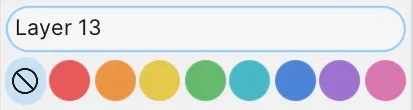
Location: Layers panel → layer list
Shortcut (macOS): ⇧⌘D (Duplicate Layer)
Shortcut (Windows): Ctrl+Shift+D (Duplicate Layer)
Basic use
Section titled “Basic use”- Select the target row in Layers.
- Drag the row or open its context menu.
- Choose Rename, Duplicate, Move to New Folder, Resize Layer, or Delete.
Main options
Section titled “Main options”| Option | What it does |
|---|---|
| Rename | Opens name editing for the row. |
| Duplicate | Duplicates a layer, folder, or skeleton with its contents and settings. |
| Duplicate Blank Layer | Creates a layer with the same frame layout but blank frames, for when you only want to carry the timing over. |
| Move to New Folder | Places the selected layers in a new folder. |
| Resize Layer | Sets the size of a compatible layer. |
| Delete | Deletes the selected layers. With multiple rows selected, all selected rows are affected. |
| Insertion point | Appears during dragging and reorders at the drop position. Dropping on a folder makes the row its child. |
- Before deleting, check for child layers in a folder and any mask relationships.
Related articles
Section titled “Related articles”Verification
Section titled “Verification”- Hands-on verified: Checked and captured the displayed panel or menu in the installed app. The upper layer context menu contains the layer name and color labels. The published image is a faithful crop of the source screenshot.
- Unverified: Verification covers only the interface shown in the image. All article procedures, effects of setting changes, exported file contents, saving/reopening and the Windows version were not reverified in this capture session.