
Zones and export zones
Verification record: Umoupen 0.9.57 build 596 (2026-09-19) · Verification scope
A zone is a named rectangular area on an infinite canvas. Use it as an export area or as a marker for a place you work on.
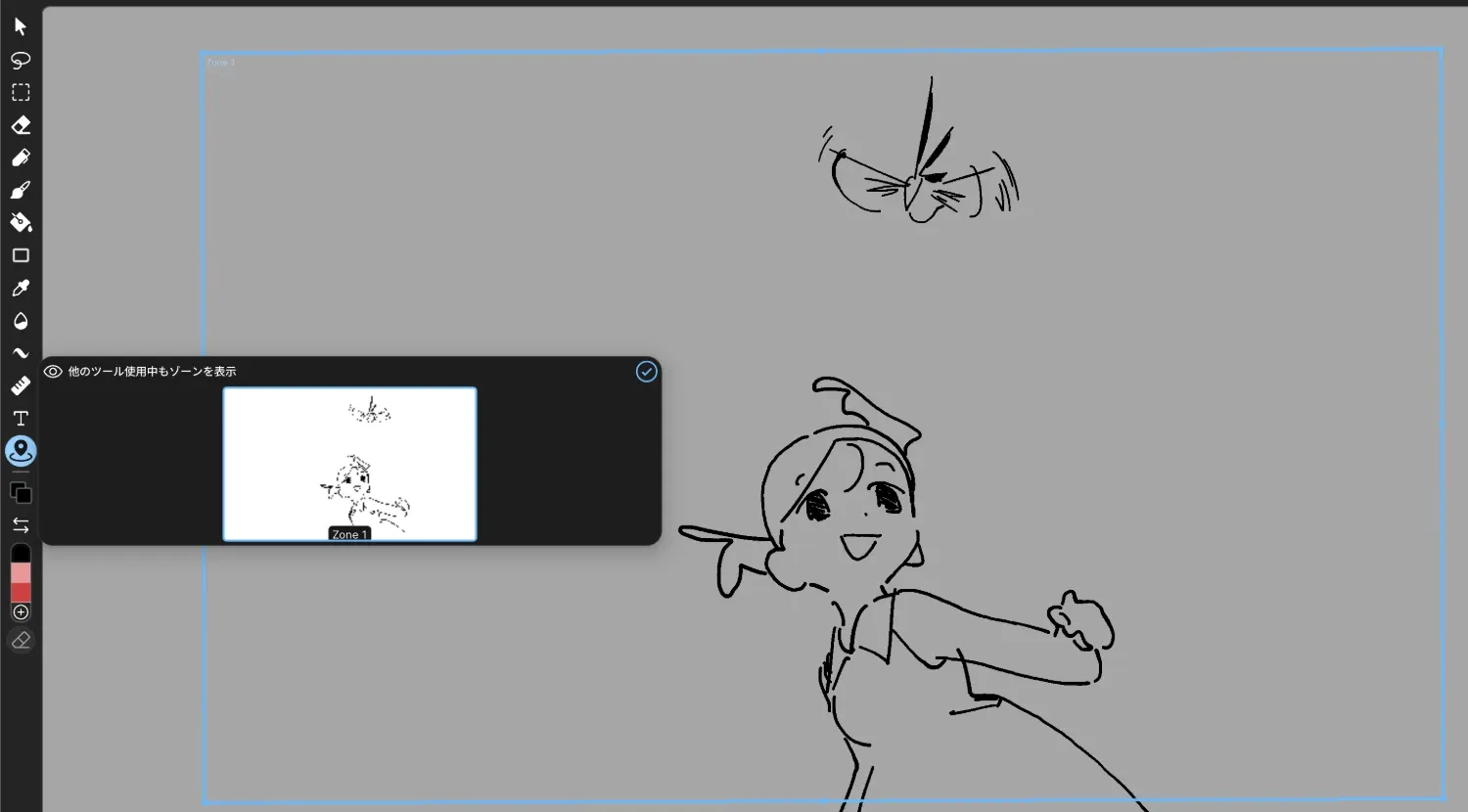
In an infinite canvas file, the zone tool appears at the bottom of the left toolbar. The blue frame is a zone.
Location: Left toolbar → zone tool (infinite canvas files only)
Shortcut: Z (Zone tool)
Files that can use zones
Section titled “Files that can use zones”The zone tool is available only in infinite canvas files. In a file created with the Endless preset on the Drawing tab of New File, the zone tool appears below Text in the left toolbar. Files created with a fixed-size preset do not show it.
App messages call an infinite canvas a Hypercanvas (for example, “Zone tool is only available on Hypercanvas”).
An infinite canvas lets you draw beyond the final output frame. When you need to set the area to export, use zones or the camera frame.
Basic steps
Section titled “Basic steps”- Select the zone tool in the left toolbar.
- Drag on the Stage around the area you want to export.
- The area becomes a zone with a name such as Zone 1.
- Right-click the zone and choose Export to export that zone’s area as a PNG image.
Options
Section titled “Options”While the zone tool is selected, the options show the following.
| Item | What it does |
|---|---|
| Show Zones Outside Tool | Keeps zone frames visible on the Stage while another tool is selected. |
| Zone thumbnails | Lists the zones you have made. Choosing one moves the view to that zone. |
| Frame on the Stage | Drag the frame to move or resize the zone. |
Right-clicking a zone shows Export and Delete zone. The zone tool can also rename zones. You can delete the selected zone with a key as well.
Export zones
Section titled “Export zones”Right-click a zone and choose Export to export only that zone’s area. The image is a PNG with a transparent background, saved as a file such as zone_001_Zone_1.png in a “File name - zones” folder inside the “File name - export” folder next to your file.
Export also has the following items for all zones at once.
| Item | What it does |
|---|---|
| Export All Zones | Exports all zones. |
| Export each zone as an image | Exports each zone as a separate PNG image. |
Not available on an infinite canvas
Section titled “Not available on an infinite canvas”- Auto Select is unavailable.
- The Liquify Tool is unavailable.
- Invert Selection works only on a canvas with a fixed size.
Related articles
Section titled “Related articles”Verification
Section titled “Verification”- Hands-on verified: In build 596, a file created with the Endless preset on the Drawing tab shows the zone tool below Text in the left toolbar. With the zone tool selected, a blue zone frame (Zone 1) is on the Stage, and the options show Show Zones Outside Tool and zone thumbnails. Files with a fixed size do not show the zone tool (reported by the user). Right-clicking a zone shows Export and Delete zone. Choosing Export saved a PNG cropped to the zone frame with a transparent background (1078 × 654, RGBA) as "Untitled 79 - export/Untitled 79 - zones/zone_001_Zone_1.png" in the same folder as the file (~/Documents/Umoupen/Untitled 79.umou).
- Verified from the current implementation: The zone tool's default key is Z (key-binding registration). The message "Zone tool is only available on Hypercanvas" exists. Choosing a thumbnail moves the view to that zone; there is a delete button for zones, deletion of the selected zone by key, and a zone context menu. The built-in help lists creating, selecting, resizing, renaming, removing, and exporting zones. Export has Export All Zones and Export each zone as an image (zone_number_name.png). On a Hypercanvas, Auto Select and Liquify are unavailable, and Invert Selection works only on a finite canvas.
- Unverified: Where Export All Zones and Export each zone as an image appear on screen and their output, renaming on screen, the entry points for converting an existing file to an infinite canvas (Convert to Infinite Canvas, Enable infinite canvas for this frame), and the Windows version.
- Evidence records: F-20260919-006