
Add text
Verification record: Umoupen 0.9.59 build 628 (2026-10-05) · Verification scope
A text object is a placed element whose text and font (typeface) remain editable. A font is a set of typeface data defining the design of characters, including their shapes and weight. Place it in a frame, then adjust its position, size, and text settings.
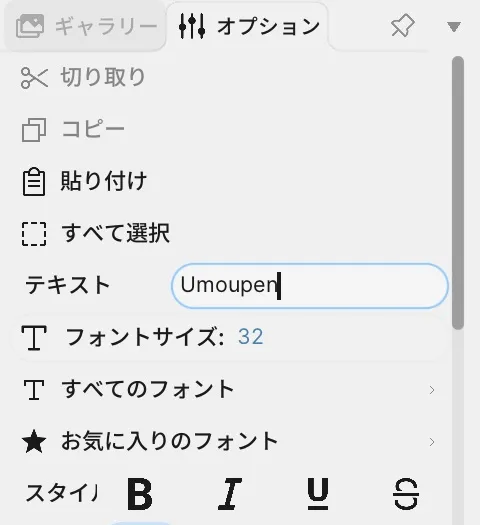
Location: Left toolbar → Text / Options on the right
Shortcut: T
Basic use
Section titled “Basic use”- Select Text.
- Click or drag on the Stage to place the text.
- Edit the text, font, size, and color in Options.
Options panel controls
Section titled “Options panel controls”| Option | What it changes |
|---|---|
| Text / Edit Text | Enters or revises the text content. |
| Font / Font Size | Typeface and text size. Right-click a font name to use Add to favourite fonts or Remove from favourite fonts and keep it near the top of the list. |
| Style | Chooses Regular, Bold, Italic, or Bold Italic. |
| Align | Chooses left, center, right, or justified alignment. |
| Text Colour | Changes the text color. |
| Letter Spacing / Word Spacing / Line Spacing | Adjusts spacing between letters, words, and lines. |
| Vertical RTL | Switches to vertical text that progresses from right to left. |
| Furigana | Adds phonetic guides to the main text. |
| Speech Bubble | Adds a bubble and adjusts Padding, Border, and Tail. |
| Transform / Order / Opacity / Tween after selection | Adjusts position, rotation, scale, stacking, opacity, and interpolation between frames. |
Related articles
Section titled “Related articles”Verification
Section titled “Verification”- Hands-on verified: Checked and captured the displayed panel or menu in the installed app. After creating a text box in the working copy, Options show text, font size, font selection and style controls. The published image is a faithful crop of the source screenshot.
- Unverified: Verification covers only the interface shown in the image. All article procedures, effects of setting changes, exported file contents, saving/reopening and the Windows version were not reverified in this capture session.