
Pages panel and page switching
Verification record: Umoupen 0.9.59 build 628 (2026-10-05) · Verification scope
A page is one unit of content in a comic, book, or similar project. Use this panel to switch the page being edited in a multi-page work. Two facing pages can also form a double-page spread.
Browse page thumbnails in Comic, Notebook, and Book projects and select the current page.
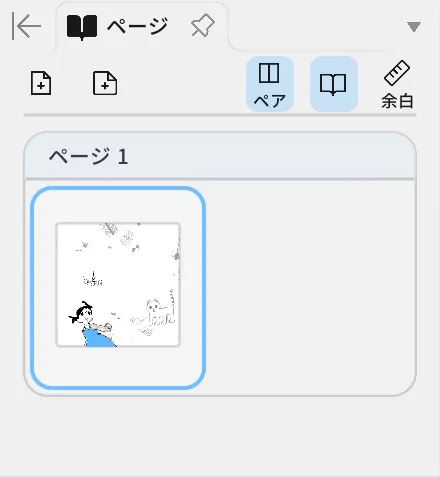
The blue outline identifies the selected Page 1 thumbnail.
Location: Panels → Show Panels → Pages
Basic steps
Section titled “Basic steps”- Choose
Panels → Show Panels → Pages. - Click a page thumbnail.
- Edit the selected page.
Controls at the top of the panel
Section titled “Controls at the top of the panel”The following five controls appear from left to right in the image. Single Page and Double-Page Spread create pages, while Pair, Preview, and Margins change the view.
| UI label | Operation type | Result |
|---|---|---|
| Single Page | Create page | Adds a new single page. |
| Double-Page Spread | Create page | Adds a new double-page spread. |
| Pair | Change view | Switches between viewing thumbnails by individual page and by page pair. |
| Preview | Change view | Shows the adjacent pages beside the page you are editing. |
| Margins | Toggle guides | Shows or hides page-margin guides on the Stage. |
For details about spreads, pairs, and margins, see Double-page spreads, solo pages, and page margins.
Main items
Section titled “Main items”| Item | What it does |
|---|---|
| Current page | Has a blue outline and is the page you are editing. |
| Page thumbnails | Let you review page contents and click to switch pages. |
| Previous / Next Page | Moves to the previous or next page. |
| Page Timeline | Shows the Timeline for a page with animation enabled. |
Operations in a page row
Section titled “Operations in a page row”| Operation | Result |
|---|---|
| Click a thumbnail | Switches to the page you want to edit. |
| Right-click a thumbnail | Opens Cut, Copy, Paste, insert before or after, and Delete. |
| Drag a thumbnail | Moves the page to the insertion point. Spreads and pairs stay together. |
For how to use each operation, see Add, duplicate, delete, and reorder pages.
Related articles
Section titled “Related articles”Verification
Section titled “Verification”- Hands-on verified: Checked the displayed interface in installed build 628 and published a faithful crop. The blue outline identifies the selected Page 1 thumbnail.
- Unverified: Verification is limited to the captured interface and the actions described above. All article procedures, setting effects, output files, saving/reopening and Windows behavior were not reverified.