
Read and use the Timesheet Timeline
Verification record: Umoupen 0.9.61 build 655 (2026-10-19) · Verification scope
A Timesheet is a table identifying which drawing to show at each time by its drawing number. A drawing number identifies artwork; it differs from a frame number, which counts time. The Timesheet panel and Timesheet Timeline show the same content, with the latter replacing the regular Timeline. See Drawings and exposures for the relationship between artwork and display intervals.

In horizontal orientation, layers A, B, and C appear as rows and time runs from left to right. Circled numbers identify drawings, and the red line marks the end of the range.
Location: Panels → Show Panels → Timesheet / Panels → Timesheet Timeline
Shortcut (macOS): ⇧⌘T (Toggle Timesheet Timeline)
Shortcut (Windows): Ctrl+Shift+T (Toggle Timesheet Timeline)
Two ways to open it
Section titled “Two ways to open it”| View | How to open it | Best use |
|---|---|---|
| Timesheet | Panels → Show Panels → Timesheet | Keep it beside your work as a panel |
| Timesheet Timeline | Panels → Timesheet Timeline, or Cmd+Shift+T | Replace the regular Timeline and use a larger view |
Reading the Timesheet
Section titled “Reading the Timesheet”| Item | Use |
|---|---|
| Drawing | Identifies drawings with circled numbers. |
| Exposure | Assigns a drawing to particular frames. |
| Frame note | Adds notes to individual frames. |
| Timesheet Text | Provides text rows for dialogue and planning. |
| Unexposed Drawings | Shows drawings that are not currently placed anywhere. |
In vertical orientation, layer names become column headings and frames proceed downward through the cells.
Copy and paste a cell
Section titled “Copy and paste a cell”- With Frame Edit, select the source cell.
- Press
Cmd+Cto copy it. - Select the destination cell and press
Cmd+Vto paste. - Check the cell number and the drawing on the canvas.
Example: place the girl’s drawing in another cell
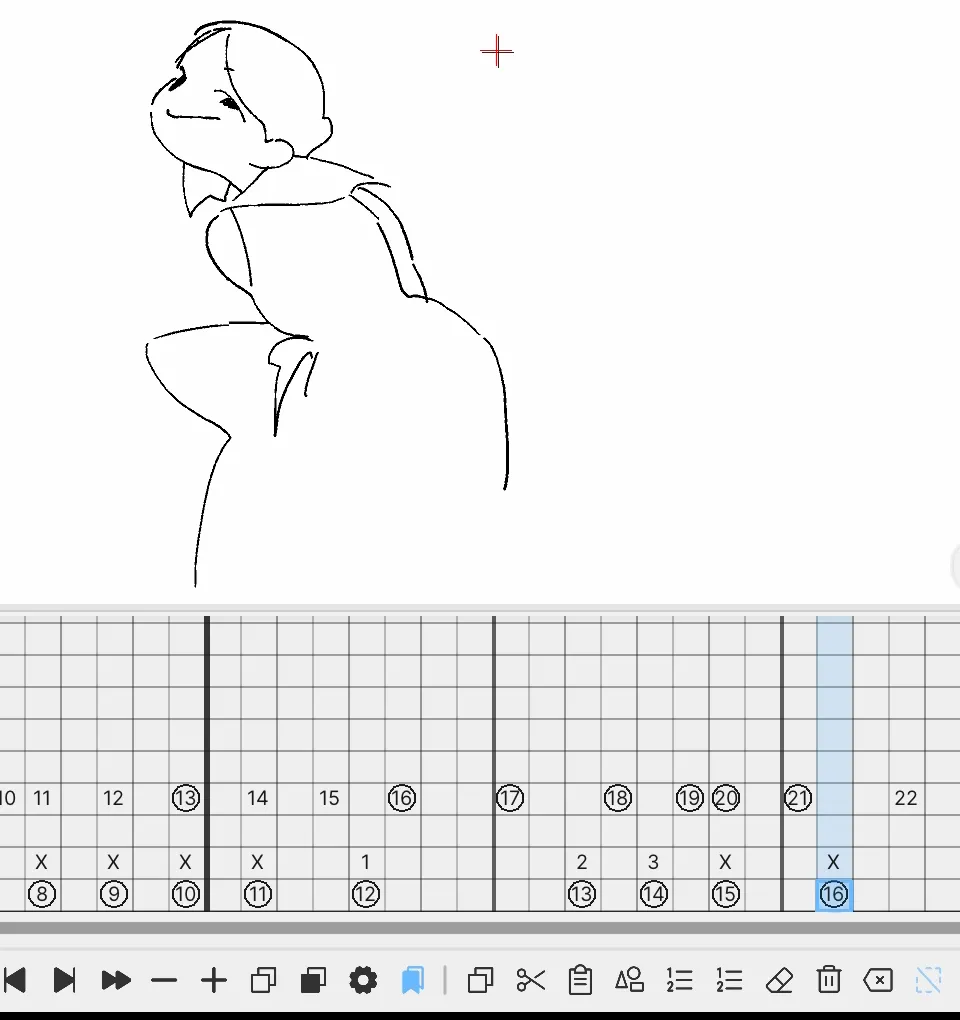
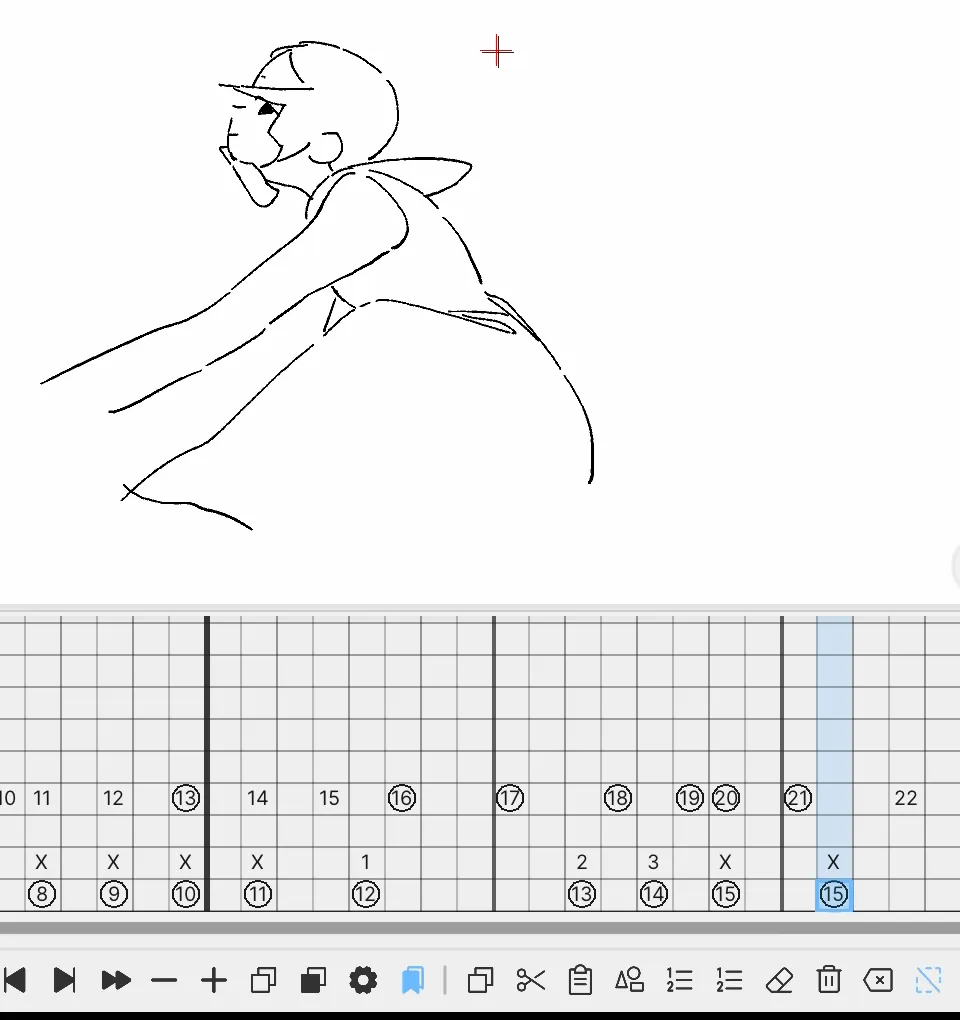
Section titled “Example: place the girl’s drawing in another cell”In row A of the project, copy drawing 15 and paste it into the cell containing drawing 16. The destination number changes to 15, and the girl’s pose matches the source drawing.
Before pasting: drawing 16
After pasting: drawing 15
On-screen controls
Section titled “On-screen controls”| Control | What it does |
|---|---|
| Orientation | Switches the frame direction between vertical and horizontal |
| Layer Names | Shows or hides the layer-name headings |
| Pen / Eraser | Draws or erases handwritten notes |
| Text | Adds text to the notes area |
| Note Select | Selects handwriting or text for moving, transforming, or deleting |
| Frame Edit | Selects table cells for timing edits |
| Zoom | Changes the table’s zoom level |
| Move Timeline to Top / Bottom | Moves the replacement Timeline view to the top or bottom |
The notes area and drawing table can be scrolled independently. The red end line is the animation’s Source Range End; drag it to change the end of the range.
When you right-click a cell
Section titled “When you right-click a cell”| Purpose | Main options |
|---|---|
| Place | Expose Drawing, Unexposed Drawings |
| Number | Edit Frame Label, Renumber, Re-sequence, Swap Drawing Numbers |
| Duplicate | Duplicate Frame, Duplicate Drawing Independently, Split Frame |
| Move or delete | Copy / Cut / Paste Frames, Clear Frames, Delete, Remove |
| Unplaced drawings | Expose on Frame, Swap With Number, Delete Unexposed Drawing |
Use Duplicate Drawing Independently when you want to separate exposures that reference the same image and edit one as a different drawing.
Exposure marks for in-betweens
Section titled “Exposure marks for in-betweens”The “/” mark identifies a planned in-between position within a hold. In build 655, in the regular Timeline, right-click a cell and use In-betweens › to set a count within the hold. Adding and removing marks with / In-between after setting a count, mark movement when lengthening the hold, and reopening after autosave were verified. See Frame marks and groups for the operations and position examples.
Display and operation in the Timesheet, XDTS export, and operation in build 657 have not been verified.
Use the notes area
Section titled “Use the notes area”Use Pen for handwriting, Eraser to erase it, and Text to add text. Change the pen color with Timesheet Pen Color.
To move an existing note, select it with Note Select. You can then move it, resize a text box, or delete several items together.
Manage Frame Notes
Section titled “Manage Frame Notes”Use Frame Notes to record items to check for individual frames. Colored categories organize the notes, and each note can be open or completed.
- Use Add note to create a note at the current frame.
- Use Note Categories to manage names and colors for different purposes.
- Use Mark note done and Reopen note to change its status.
- Use Search notes to filter notes and Show Note Flags to toggle their Timeline markers.
When a project is linked to Studio Note Categories, its categories are managed from Studio. Unlink the project to edit the categories within the project.
More tips
Section titled “More tips”- Use the regular Timeline when you want to see drawing thumbnails side by side.
- To deliver the Timesheet as an image or CSV file, use Export a Timesheet.
Related articles
Section titled “Related articles”Verification
Section titled “Verification”- Hands-on verified: In an isolated launch on Mac mini on October 18–19, 2026, verified setting a count with In-betweens in the regular Timeline, adding and removing marks with / In-between afterward, mark movement when extending a 12-frame hold to 13 and 15 frames, and reopening after autosave. This article update uses that existing record.
- Unverified: Limited to those operations in a 24-frame test project containing two key drawings made of symbols on a vector layer. K-based Frame Marks, groups, and existing Timesheet operations were not reverified for this update.
- Unverified: Operation in build 657, Timesheet display and controls, XDTS and other exports, shortening holds, colliding marks, Reverse Sheet, manual marking without first setting a count, drawing with Draw In-between, Windows, and iPad remain unverified.
- Evidence records: F-20261018-016