
Masks and clipping masks
Verification record: Umoupen 0.9.59 build 628 (2026-10-05) · Verification scope
A mask limits the area where artwork is visible. The clipping mask described here uses the drawn shape of a lower layer to limit the visible area of a layer above it. Right-click the layer you want to clip and choose Clip to Layer Below.
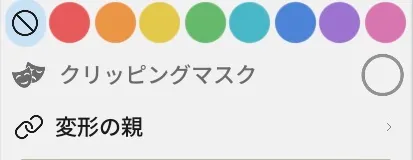
Location: Layers panel → right-click the target layer → Clip to Layer Below
Use a clipping mask
Section titled “Use a clipping mask”- In the Layers panel, place the layer you want to clip directly above the layer that defines the shape.
- Right-click the upper layer.
- Choose
Clip to Layer Below. - Check that the upper layer’s artwork appears only where the lower layer is drawn.
To remove clipping, right-click the same layer and choose the checked Clip to Layer Below again.
Clip several layers to the same shape
Section titled “Clip several layers to the same shape”Stack layers directly above the base layer and set Clip to Layer Below on each of them. They are all clipped to the same base shape, so shadows, highlights, and textures can stay on separate layers while following one shape.
The base layer and the layers clipped to it form a clipping group. If you select only part of the group and try to merge, Umoupen shows “Select the complete clipping group to merge”. Select the base and all clipped layers before merging. See Merge, flatten, and rasterize layers for the merge types.
Toggle clipping temporarily
Section titled “Toggle clipping temporarily”A clipped layer’s row shows the Clipping Mask icon. Use this icon to turn the clipping on and off without removing the setting, for example to compare the result before and after clipping.
If clipping does not work
Section titled “If clipping does not work”| Symptom | Check this first |
|---|---|
Clip to Layer Below does not appear | Check that there is a base layer below the target layer inside the same folder. Right-click the target layer row, not the entire panel. |
| The wrong shape is used | Move the layer you want to clip directly above the intended base layer. |
| You cannot find how to remove clipping | Right-click the target layer and choose the checked Clip to Layer Below again. |
| You want to limit an effect to another layer’s shape | Use Use current layer as mask in Layer effects. |
Available options
Section titled “Available options”| Option | What it does |
|---|---|
Clip to Layer Below | Clips this layer to the shape of the layer below. Choosing it while it is checked removes clipping. |
| Clipping Mask icon | Appears on a clipped layer’s row and turns clipping on and off. |
Related articles
Section titled “Related articles”Verification
Section titled “Verification”- Hands-on verified: Checked and captured the displayed panel or menu in the installed app. The Clipping Mask control appears below the color labels. The published image is a faithful crop of the source screenshot.
- Unverified: Verification covers only the interface shown in the image. All article procedures, effects of setting changes, exported file contents, saving/reopening and the Windows version were not reverified in this capture session.