
Warp and distort a selection
Verification record: Umoupen 0.9.53 build 550 (2026-09-03) · Verification scope
Reshape selected artwork using Warp to move grid points or Distort to move the four corners.
Location: Options after selection → Warp / Distort
Shortcut (macOS): W (Warp) / ⇧W (Distort)
Shortcut (Windows): W (Warp) / Shift+W (Distort)
Choose what to reshape
Section titled “Choose what to reshape”| Operation | What you move | Target |
|---|---|---|
| Warp | Grid points within the selection | A raster selection |
| Distort | The four corners of the selection | Selected artwork |
| Liquify Tool | Drag across an area defined by Radius | Artwork on Selected Layers or Visible Layers |
Warp: reshape with grid points
Section titled “Warp: reshape with grid points”- Enclose raster artwork with Lasso or Rect Select.
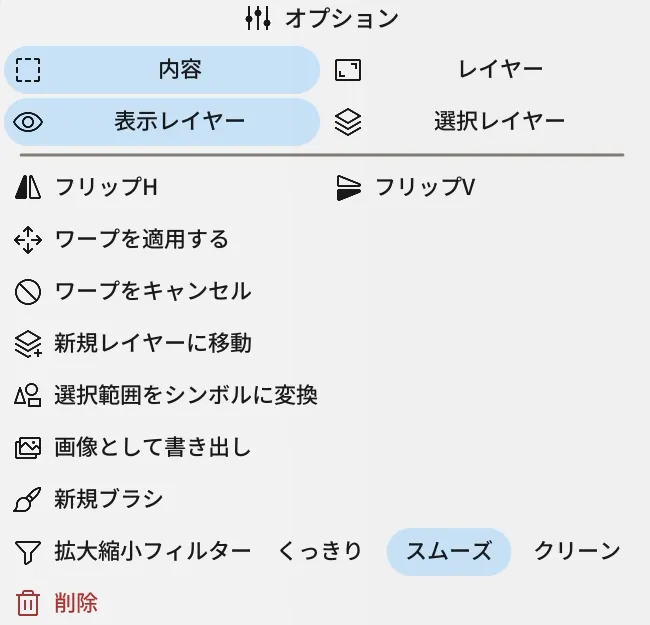
- Choose Warp from Options after making the selection.
- Drag a grid point to reshape the artwork.
- Choose Apply Warp to confirm, or Cancel Warp to discard the change.
This example uses line art converted to raster. Moving the grid point near the face up and left deforms the surrounding outlines. Applying the warp removes the grid and commits the deformation.
Distort: reshape with the four corners
Section titled “Distort: reshape with the four corners”- Enclose the artwork with Lasso or Rect Select.
- Choose Distort from Options after making the selection.
- Drag a corner of the selection to reshape the artwork.
- Choose Apply Distort to confirm, or Cancel Distort to discard the change.
Make local changes with Liquify
Section titled “Make local changes with Liquify”For local contour changes made by dragging near the artwork, see Liquify tool.
Related articles
Section titled “Related articles”Verification
Section titled “Verification”- Verified from the current implementation: The implementation includes Raster and Vector Liquify, Selected Layers and Visible Layers scope, Radius and Strength controls, and a label stating that Liquify is unavailable on Hypercanvas.
- Unverified: The live tool location and representative operation in build 550, and the Windows version, were not verified.