
Edit a selection
Verification record: Umoupen 0.9.59 build 628 (2026-10-05) · Verification scope
Copy, cut, paste, or delete artwork identified by a selection. The clipboard temporarily holds content taken by Copy or Cut so that you can paste it.
Location: Selection on the Stage / Edit menu
Shortcut (macOS): ⌘A (Select All) / ⌘D (Deselect)
Shortcut (Windows): Ctrl+A (Select All) / Ctrl+D (Deselect)
Basic use
Section titled “Basic use”- Select the target with Lasso, Rect Select, Auto Select, or Move.
- Choose Copy or Cut under Edit.
- Select the destination layer and frame, then choose Paste.
To select only painted areas in the current frame, select the target Raster Layer and frame, then run Select Opaque Pixels from the layer or Timeline action menu.
Main options
Section titled “Main options”| Option | What it does |
|---|---|
| Select All | Selects all editable artwork. |
| Select Opaque Pixels | Selects every nontransparent pixel in the current layer’s current frame. |
| Copy / Cut | Copies / cuts the selection. |
| Paste | Pastes at the standard position. |
| Paste in Place | Pastes at the original position. |
| Delete / Clear | Removes the selected content. |
The paste item changes with the clipboard
Section titled “The paste item changes with the clipboard”The name of the paste command follows what the clipboard holds.
| Item | Clipboard contents |
|---|---|
| Paste Selection | A selection copied inside Umoupen |
| Paste Vectors | Vector strokes and fills |
| Paste Symbol | A symbol |
| Paste Raster | An image on the macOS clipboard |
| Paste Text | A string on the macOS clipboard |
With nothing copied inside Umoupen, the macOS clipboard is used instead. If an unexpected image or string appears, check whether the previous copy succeeded.
Modify a raster selection
Section titled “Modify a raster selection”On a finite canvas, use Expand Selection, Contract Selection, or Feather Selection to adjust the boundary. Selection Radius sets the adjustment amount. A floating selection is selected content whose move or transform has not yet been committed. Commit any floating selection first.
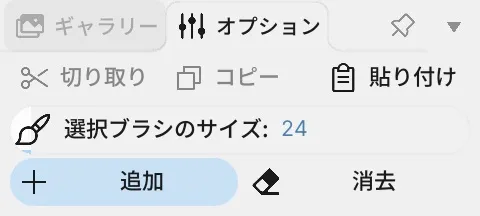
Selection Brush and Selection Brush Size provide brush editing of the selection mask. Check the boundary before filling or deleting.
Related articles
Section titled “Related articles”Verification
Section titled “Verification”- Hands-on verified: Checked and captured the displayed panel or menu in the installed app. Selection Brush Options show brush size and Add or Erase selection modes. The published image is a faithful crop of the source screenshot.
- Unverified: Verification covers only the interface shown in the image. All article procedures, effects of setting changes, exported file contents, saving/reopening and the Windows version were not reverified in this capture session.