
Images and reference images
Verification record: Umoupen 0.9.59 build 628 (2026-10-05) · Verification scope
An image layer places an image as part of the artwork. A reference image is displayed as a visual aid while drawing. Choose the destination according to whether the image belongs in the work or is there for reference.
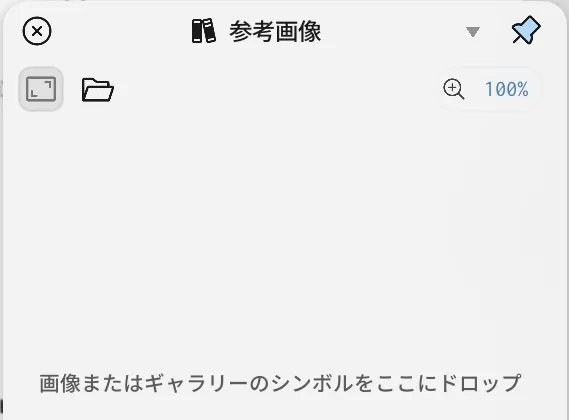
Location: Panels → Show Panels → Reference / Layers panel → Image
Basic steps
Section titled “Basic steps”- Choose Add Reference Image in the Reference panel, or drop an image or Gallery Symbol onto the panel.
- Select the image and adjust its position, size, and visible range.
Main options
Section titled “Main options”| Option | What it does |
|---|---|
| Image Layer | Places an image as project content |
| Reference | Shows an image as a drawing reference |
| Show / Hide Reference | Changes the visibility of a reference image |
Controls at the top of the Reference panel
Section titled “Controls at the top of the Reference panel”| Option | What it does |
|---|---|
| Show All | Fits all placed reference images in the panel |
| Add Reference Image | Imports an image file |
| Crop | Adjusts the used area of the selected image |
| Flip Horizontal / Flip Vertical | Flips the orientation of the selected image |
You can also right-click an image to open Crop, Flip Horizontal, Flip Vertical, and Frame operations. Multiple images support selection, movement, scaling, and moving to the front.
Related articles
Section titled “Related articles”Verification
Section titled “Verification”- Hands-on verified: Checked and captured the displayed panel or menu in the installed app. The References panel has a folder button and a drop area for images or Gallery symbols. The published image is a faithful crop of the source screenshot.
- Unverified: Verification covers only the interface shown in the image. All article procedures, effects of setting changes, exported file contents, saving/reopening and the Windows version were not reverified in this capture session.