
Configure pen input
Verification record: Umoupen 0.9.59 build 628 (2026-10-05) · Verification scope
Pressure measures how firmly the pen is pressed; tilt measures how upright or inclined it is. Hover means holding the pen near the surface without touching it. How those values affect properties such as line width also depends on the brush preset.
Match pressure, tilt, hover, and cursor response to the tablet you use.
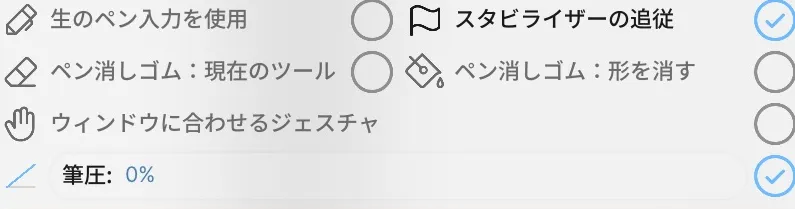
Location: View → Use Raw Pen Input / Settings
Basic checks
Section titled “Basic checks”- Open the Pen Input settings.
- Test Use Raw Pen Input both on and off.
- Adjust Brush Cursor Hover Preview and Drawing Cursor Type.
- Draw lines from thin to thick with the Brush tool and check pressure and tilt.
Main settings
Section titled “Main settings”| Setting | What it does |
|---|---|
| Use Raw Pen Input | Uses the pen’s own position and pressure without stabilization, smoothing, or taper shaping. |
| Brush Cursor Hover Preview | Shows the brush cursor before the pen touches the tablet. |
| Drawing Cursor Type | Selects Brush Preview, Crosshair, or another cursor. |
| Pen Pressure / Minimum Pressure | Sets how pressure responds across the application and the floor for the lightest touch. |
| Brush pressure settings | Assigns Pressure to size, opacity, and other properties. |
If the pen does not respond
Section titled “If the pen does not respond”- Try another Brush Preset and check its pressure settings.
- Confirm that the tablet driver and operating system recognize pressure.
- After toggling Raw Pen Input, compare the result by drawing the same line.
Finish strokes at the pen lift point
Section titled “Finish strokes at the pen lift point”Stabilizer Catch-Up follows the path drawn while stabilization lagged behind and finishes the stroke at the pen lift point. Toggle it in the input settings and compare the ends of the same short stroke.
Use Raw Pen Input draws from the pen’s own position and pressure without stabilization, smoothing, or taper shaping. Check this setting when comparing how stroke correction behaves.
Stabilizer Line is a different setting with a similar name. While you draw, it connects the cursor to the point being painted so the lag is visible; the finished stroke is unchanged. Use it to see how far behind the stabilizer is running.
Drawing cursor and finger input
Section titled “Drawing cursor and finger input”Enable Hide cursor while drawing to hide the drawing cursor while a stroke is active.
Draw with Finger lets finger input use the active drawing tool on the canvas. It is intended for an environment with touch input. Conflicts between finger input and gestures have not been checked on the Mac used for testing.
Erase with the pen’s eraser end
Section titled “Erase with the pen’s eraser end”Settings on the input page choose what happens when you erase with the pen’s eraser end.
| Setting | When on | When off |
|---|---|---|
| Pen Eraser: Current Tool | Uses the current brush or pen in Eraser Mode. | Uses the separate Eraser tool and its settings. |
| Pen Eraser: Delete Fill | While the eraser end touches the canvas, deletes with the bucket or lasso fill shape. | Follows the tablet eraser tool setting. |
After switching, erase the same line or fill with the pen’s eraser end and compare the results.
Related articles
Section titled “Related articles”Verification
Section titled “Verification”- Hands-on verified: Checked and captured the displayed panel or menu in the installed app. The Other tab contains raw pen input, pen eraser, gesture and pressure controls. The published image is a faithful crop of the source screenshot.
- Unverified: Verification covers only the interface shown in the image. All article procedures, effects of setting changes, exported file contents, saving/reopening and the Windows version were not reverified in this capture session.