
Select with Lasso or Rect Select
Verification record: Umoupen 0.9.59 build 628 (2026-10-05) · Verification scope
A selection identifies the portion targeted by operations such as moving or copying. Lasso encloses it with a freeform boundary; Rect Select uses a rectangular boundary. The boundary shape and the units of artwork selected within it are separate settings.
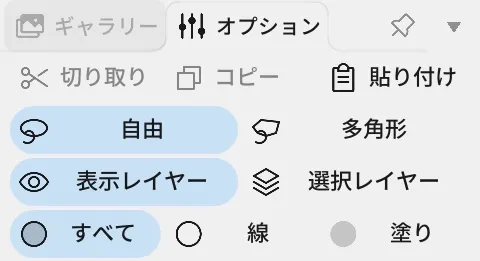
Location: Left toolbar → Lasso or Rect Select / Options on the right
Shortcut: L (Lasso) / M (Rect Select)
Basic use
Section titled “Basic use”- Choose Lasso for a freeform boundary or Rect Select for a rectangle.
- Draw around the target.
- Add to or subtract from the selection as needed, then use Move or an editing command.
Select with a polygon or ellipse
Section titled “Select with a polygon or ellipse”Switch the selection shape to use Lasso as Freeform / Polygon and Rect Select as Rectangle / Ellipse.
- Polygon: Click each corner, then click the first corner again or double-click to finish. Press
Escto cancel. - Ellipse: Drag around the elliptical region to select.
Options panel controls
Section titled “Options panel controls”Lasso and Rect Select differ only in the selection shape. Their target settings in Options are the same.
| Option | What it changes |
|---|---|
| Visible Layers / Selected Layers | Targets visible layers or selected layers. |
| Freeform / Polygon, Rectangle / Ellipse | Switches the boundary used by Lasso or Rect Select. |
| All / Lines / Fills | Chooses whether to select lines, fills, or both. |
| Shape / Split / Cut | Selects a whole shape, part of a line, or the part cut by the selection shape. |
| Crop Selection Shape | Crops the content to the selection shape. |
| Show transform handles | Keeps the selection transform box after you finish drawing the boundary. On a handle, transforming takes priority over starting a new selection. |
| Cut / Copy / Deselect / Invert Selection | Cuts, copies, deselects, or inverts the selection. |
| Convert Selection to Symbol / Move to New Layer / New Brush | Converts the selection to a Symbol, moves it to another layer, or turns it into a brush. |
After selection, the transform controls from Move appear together with Flip, Warp, Distort, Delete, and other actions.
Related articles
Section titled “Related articles”Verification
Section titled “Verification”- Hands-on verified: Checked and captured the displayed panel or menu in the installed app. Lasso Options offer Free or Polygon mode, layer scope and line/fill targets. The published image is a faithful crop of the source screenshot.
- Unverified: Verification covers only the interface shown in the image. All article procedures, effects of setting changes, exported file contents, saving/reopening and the Windows version were not reverified in this capture session.